Can I Preview My Cards Before I Send Them?
Inked provides a full preview of your card and envelope before it is sent, ensuring that every detail appears exactly as you intend. After selecting your contacts, choosing a cover design, and composing your handwritten note, you will be directed to a "Review & Send" tab. This preview displays both the card and the envelope layout as they will appear when printed and mailed.
This step allows you to carefully review your message for any errors, confirm that your custom design is properly aligned, and verify that the correct recipients and return address are in place. Once you approve the preview and submit your order, changes can no longer be made, as the card will move immediately into production.
If you notice issues during the preview, such as formatting errors or low-quality images, you can return to the previous steps to make adjustments before finalizing your order. For automated or scheduled campaigns, it is recommended to review each send to ensure that all details remain accurate and relevant. If a mistake is discovered after submission, contact support immediately. While edits cannot be guaranteed, there may be a brief window before production begins during which adjustments are possible.
How to Preview Your Card Before It's Sent in Inked
Previewing your card in Inked is simple. Here's how.
Go to app.inked.com
1. Introduction
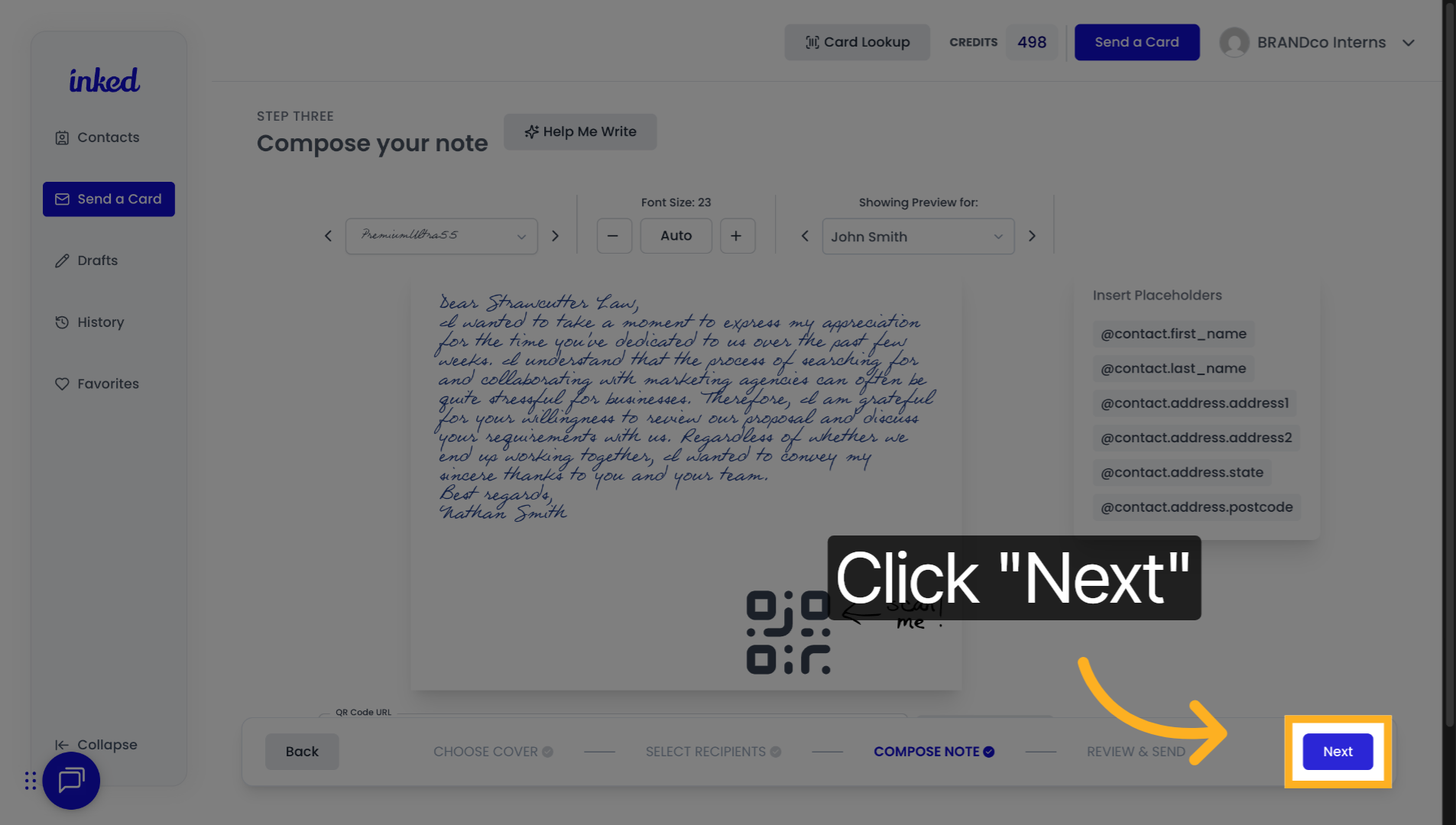
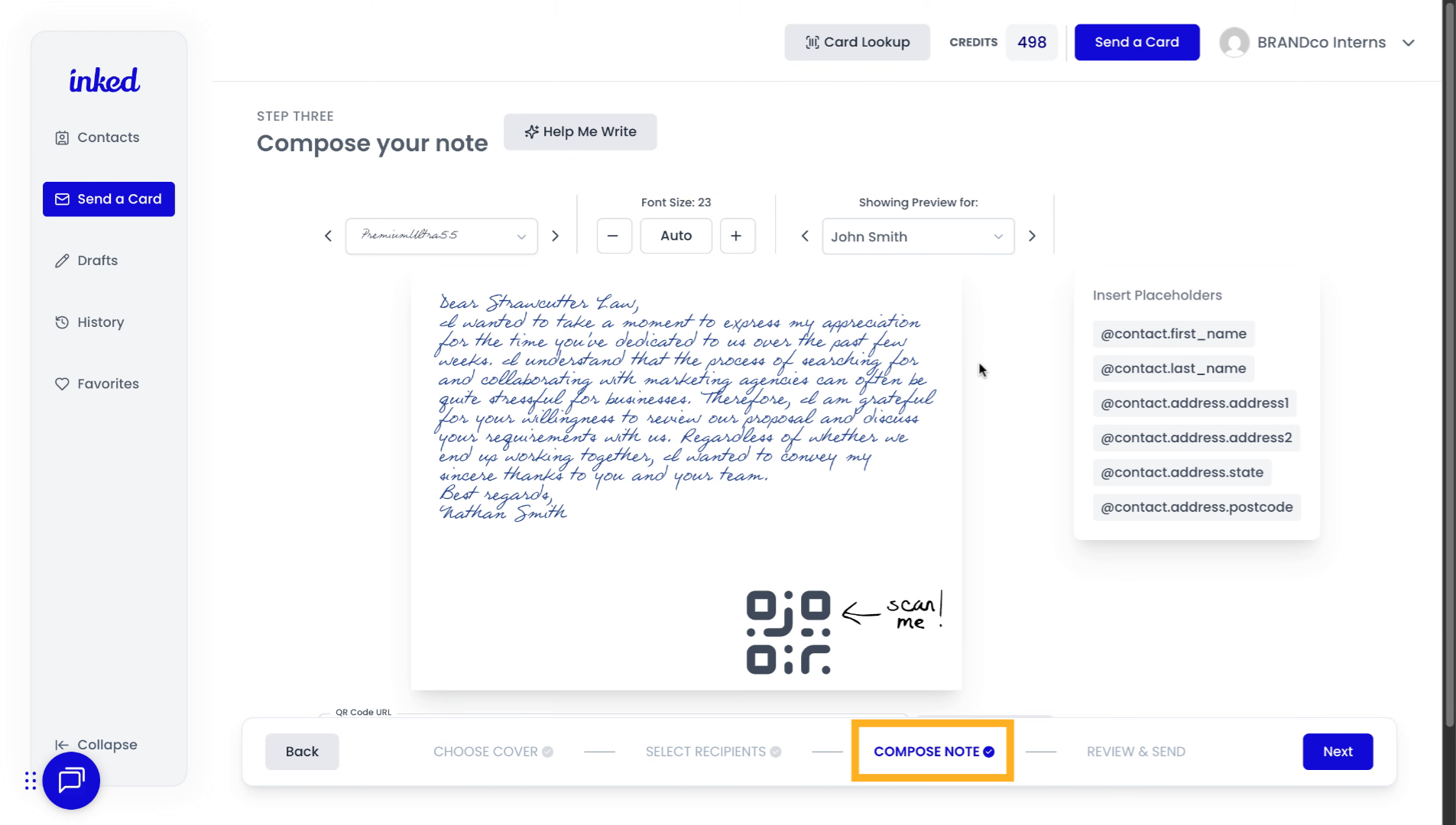
Start in the Compose Note section of the card creation process. If you're unsure where that is, it's highlighted in yellow in the screenshot.
2. Click "Next"
Write your message. If it looks good, click Next (bottom right) to go to Review & Send.
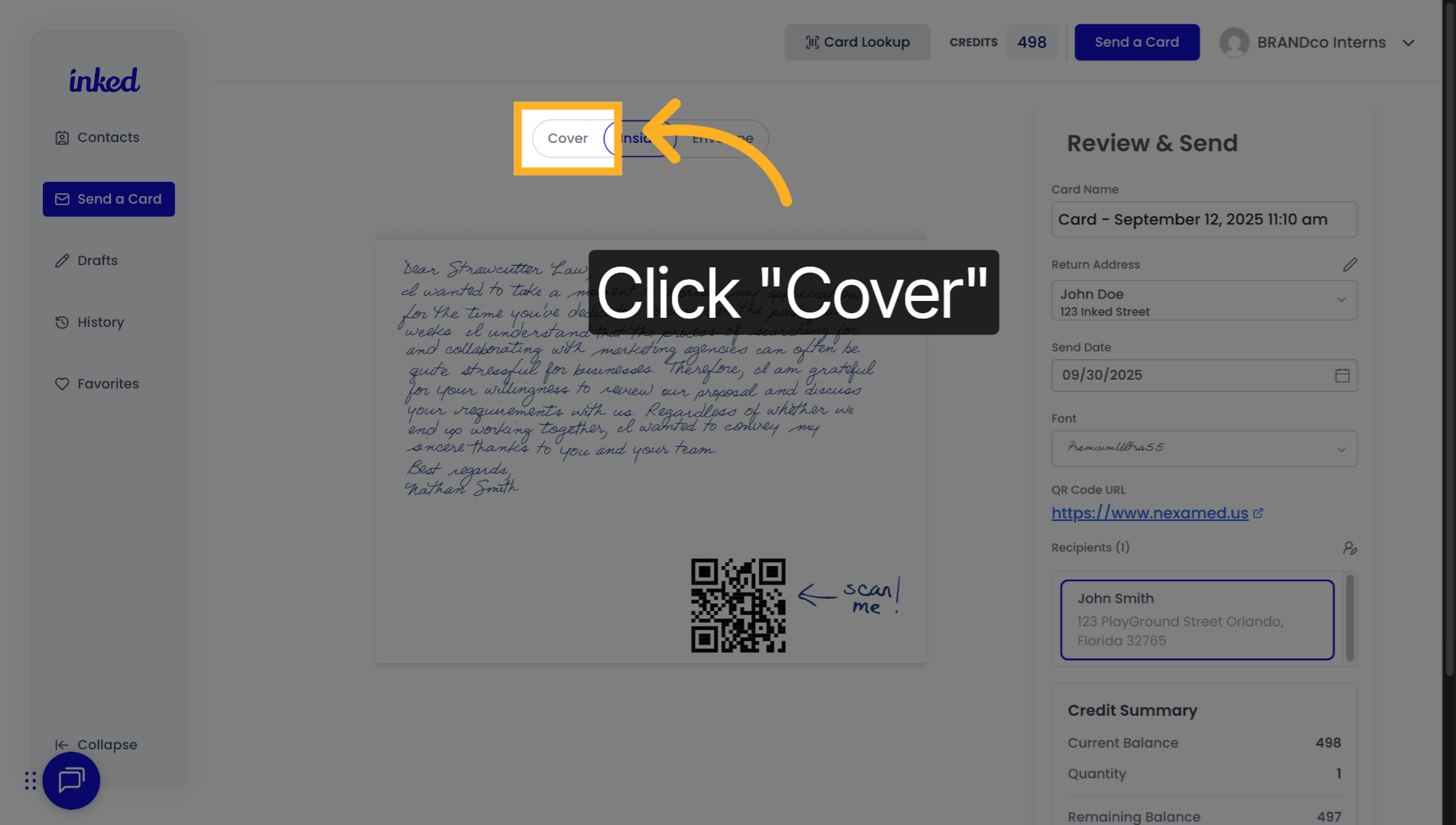
3. Click "Cover"
In Review & Send, use the preview bar (Cover / Inside / Envelope). Click Cover to preview the front.
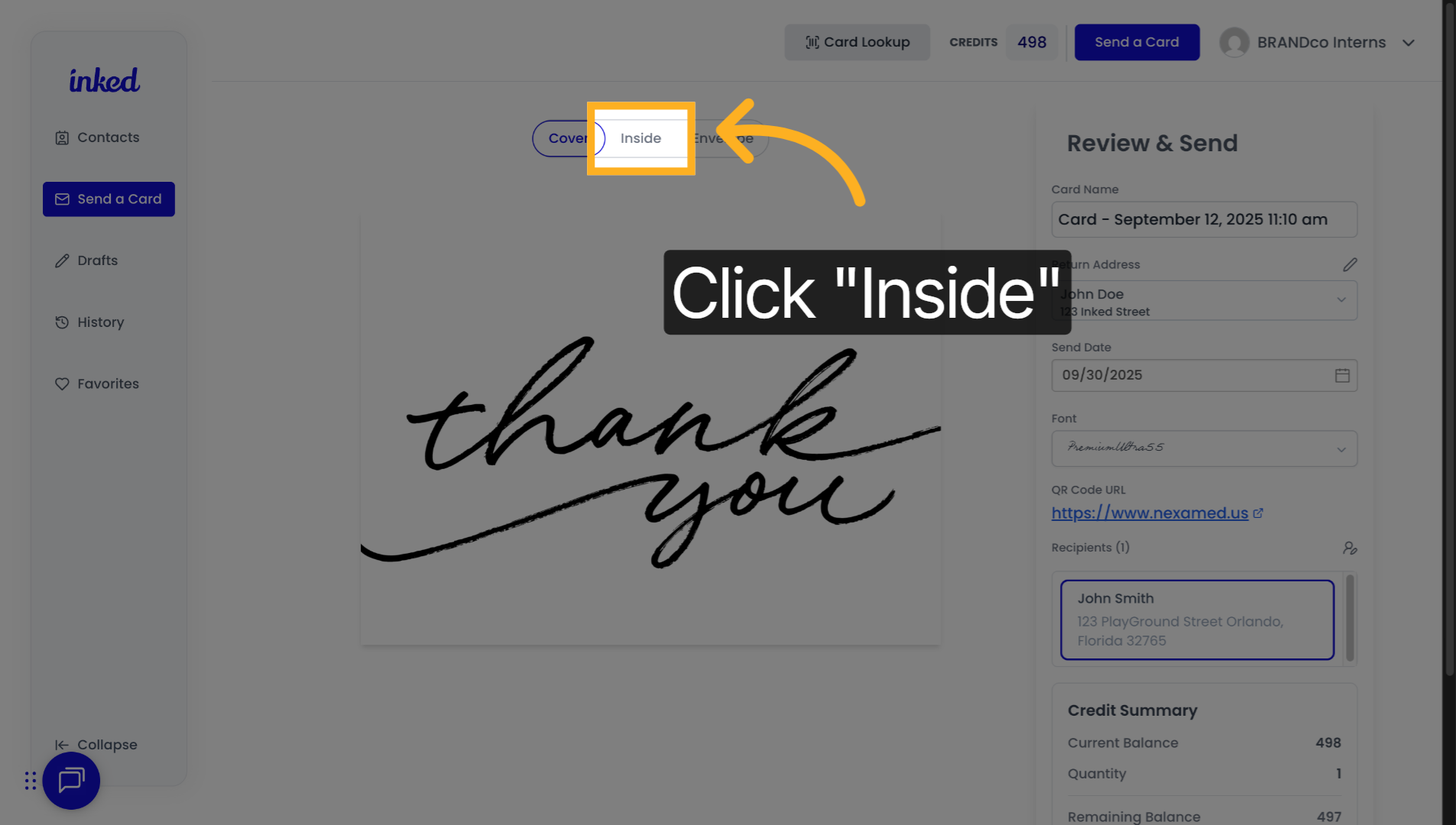
4. Click "Inside"
Click Inside to preview your message, QR code, and any doodles you added.
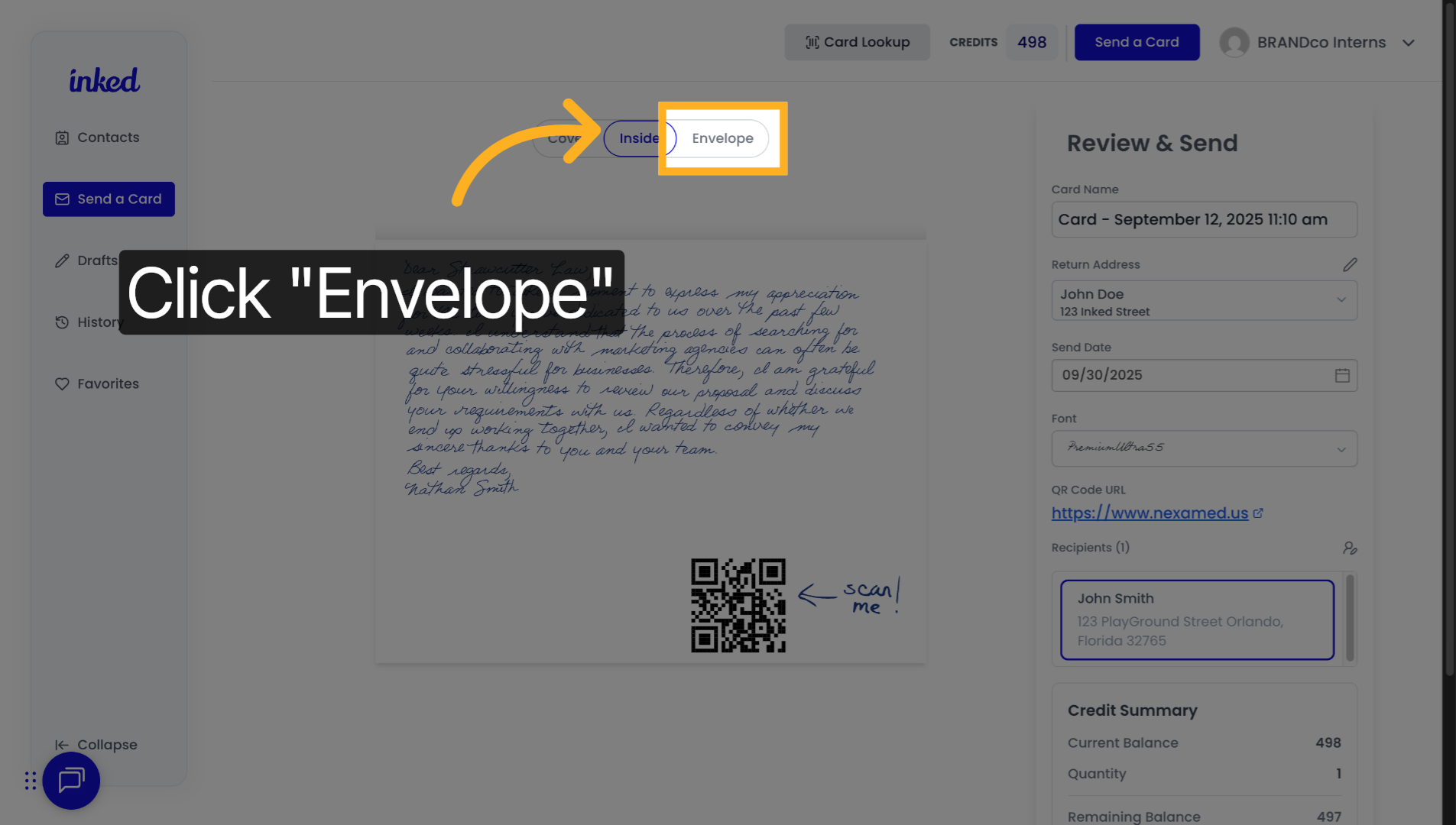
5. Click "Envelope"
Click Envelope to see how recipients will receive it. Confirm the return and recipient addresses are correct.
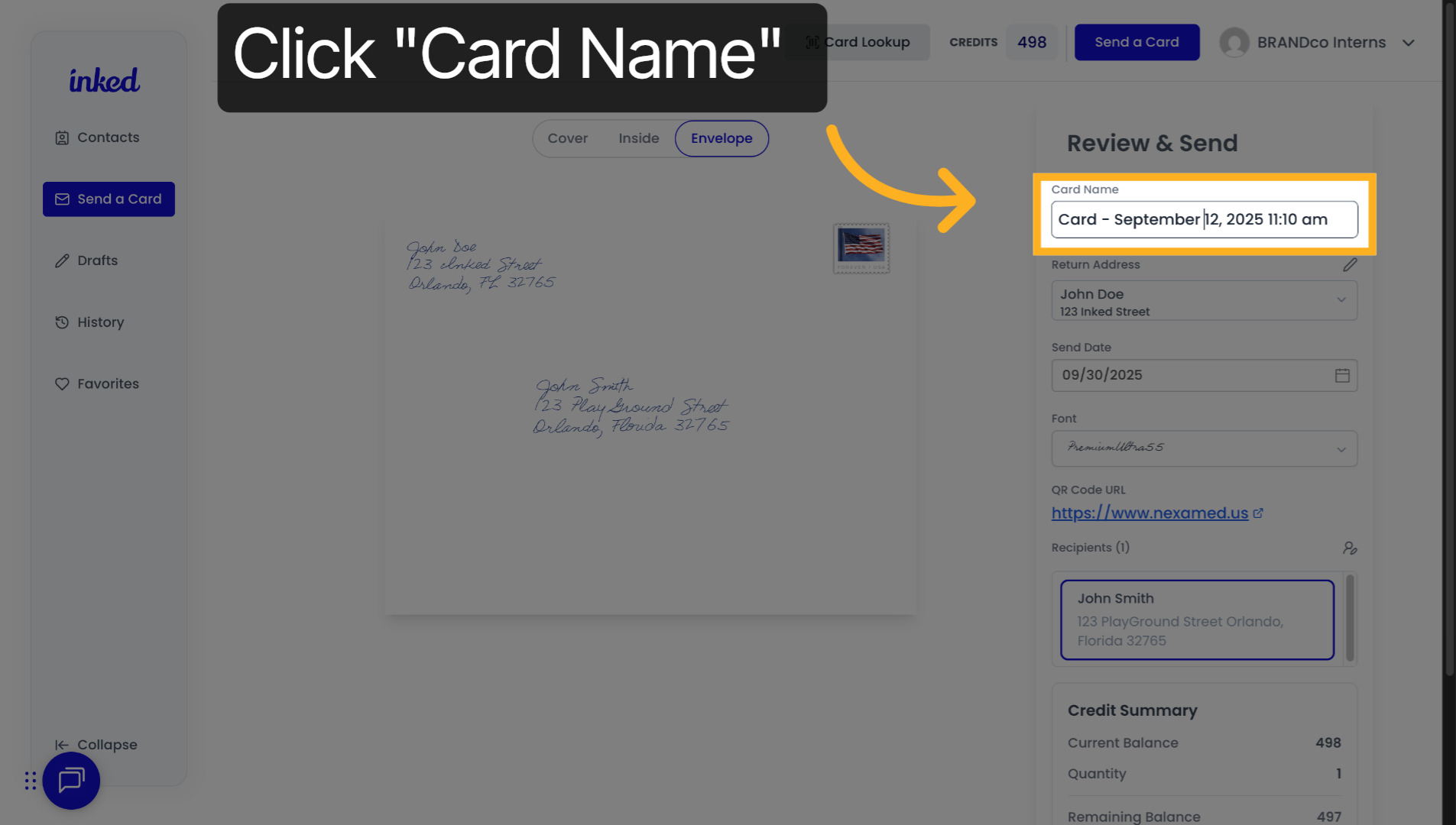
6. Click "Card Name"
On the right, under Review & Send, you can name your card (this is only visible to you).
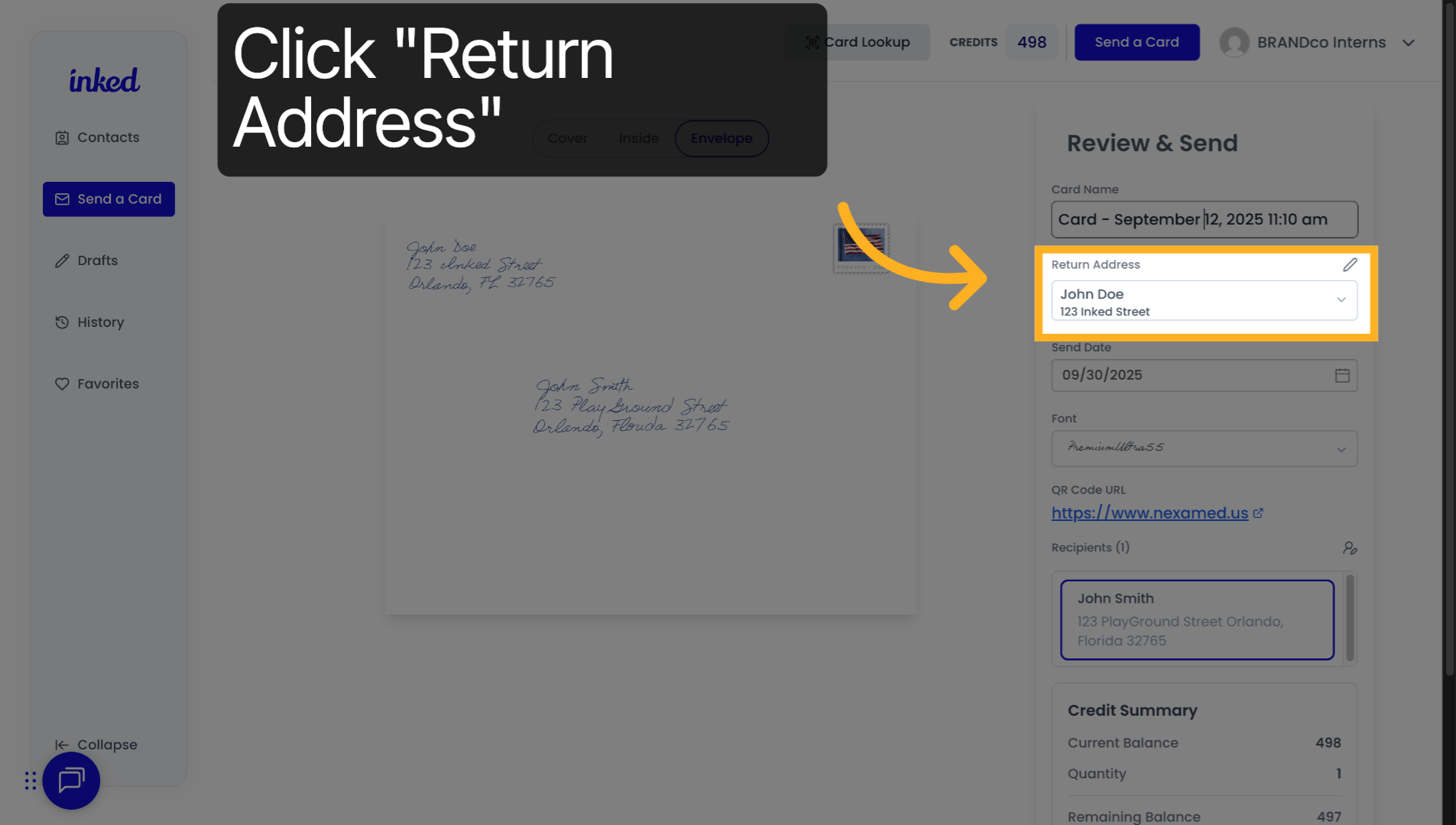
7. Click "Return Address"
Update your return address if needed. If you change it, re-check the Envelope preview to confirm it updated.
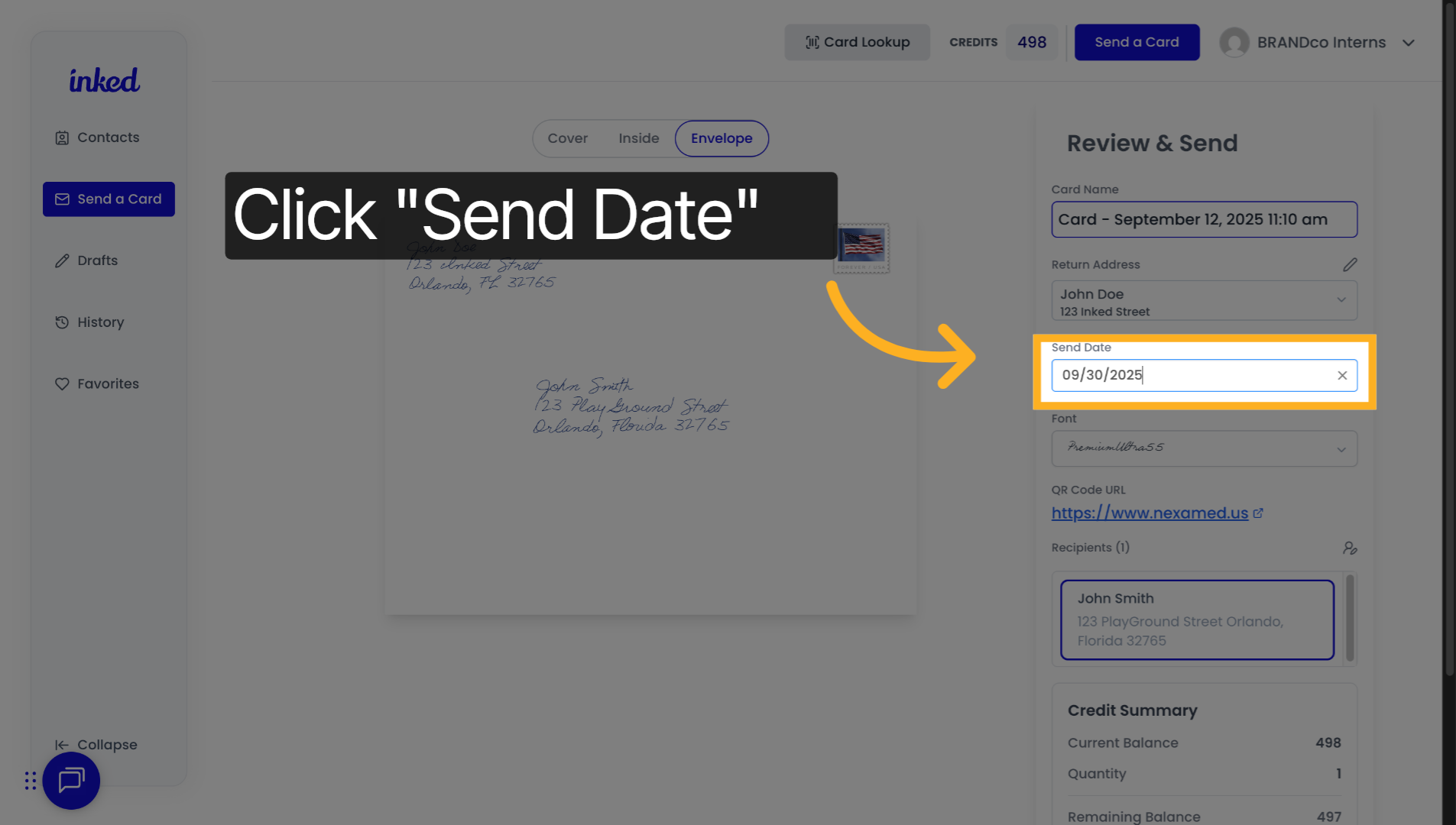
8. Click "Send Date"
Optionally schedule for a future date via Send Date. If you don't need scheduling, skip this step.
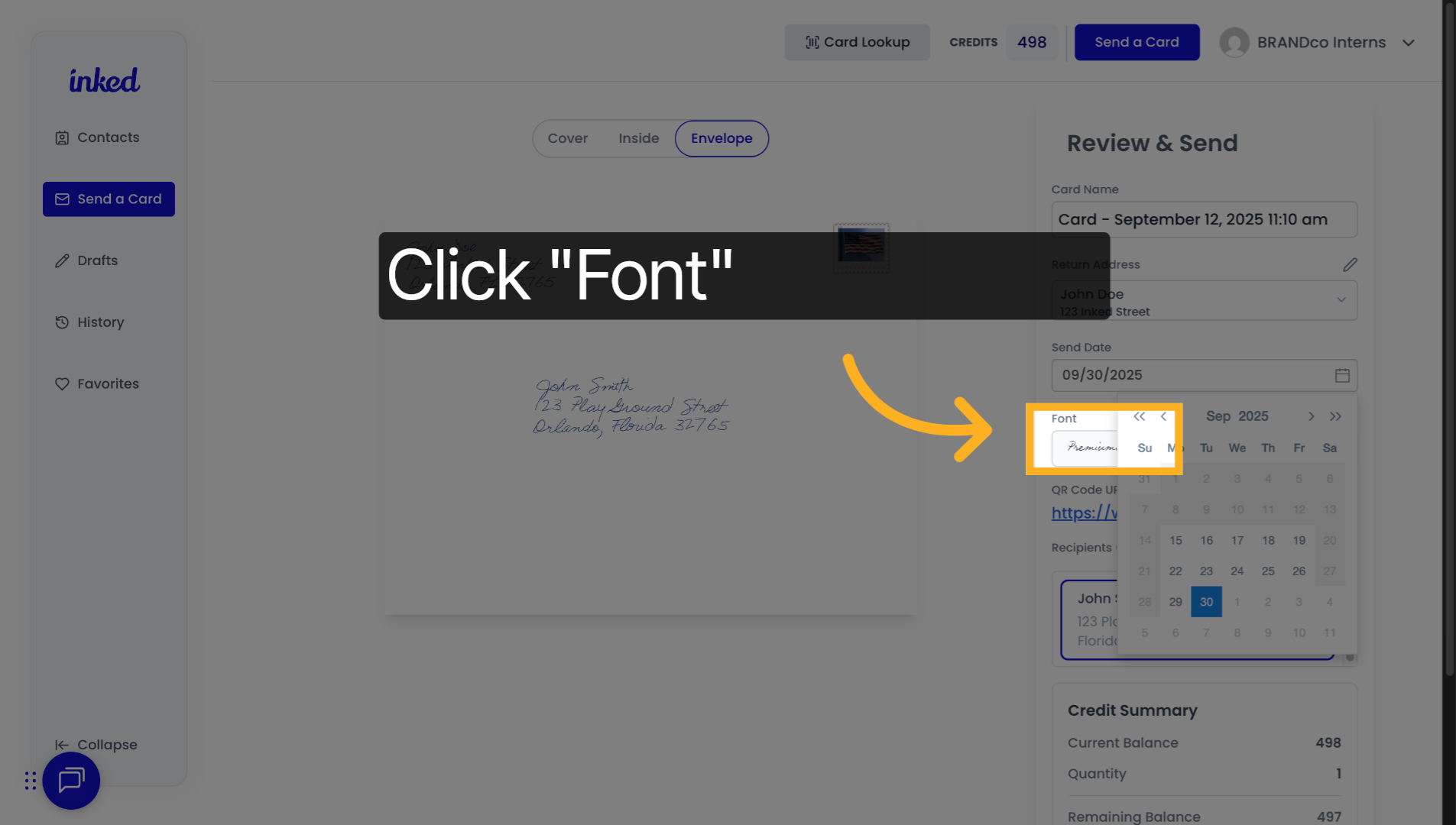
9. Click "Font"
Optionally change the Font. If you do, re-check the Inside and Envelope previews.
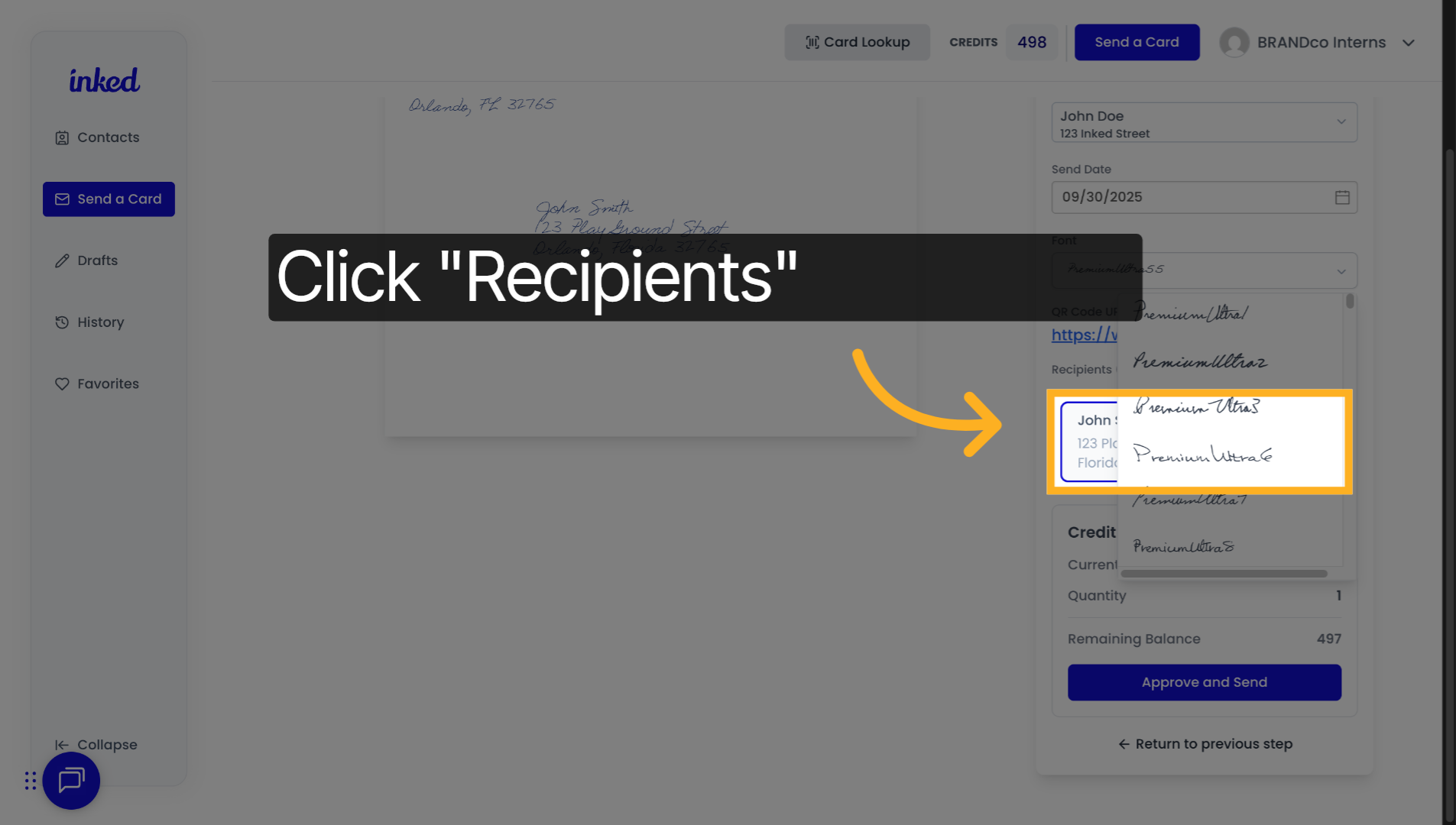
10. Click "Recipients"
Click Recipients to review who will receive the card. Select a recipient, then re-check the Envelope preview for that person. Add/remove recipients via the icon in the yellow box (top-right).
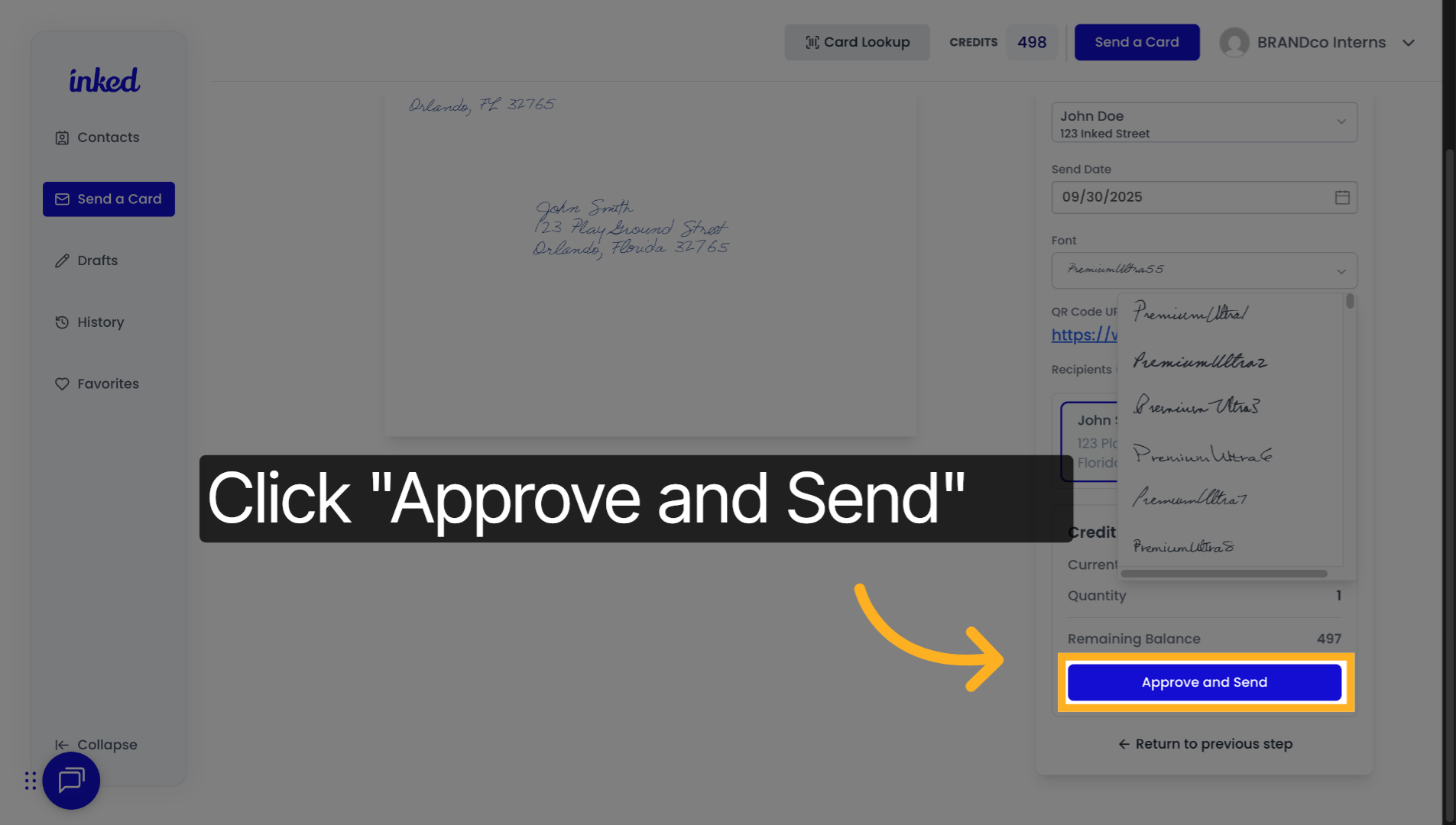
11. Click "Approve and Send"
Final check: ensure all details are correct. Click Approve and Send to finalize. Note: after sending, you can't make changes.
That's it—you've previewed your card and confirmed all details in Inked.