
Can I schedule cards to be sent on future dates?
How to Schedule a Card for a Later Date
Scheduling a card for a future date in Inked is easy. Here's how to do it in five quick steps.
Go to app.inked.com
1. Introduction
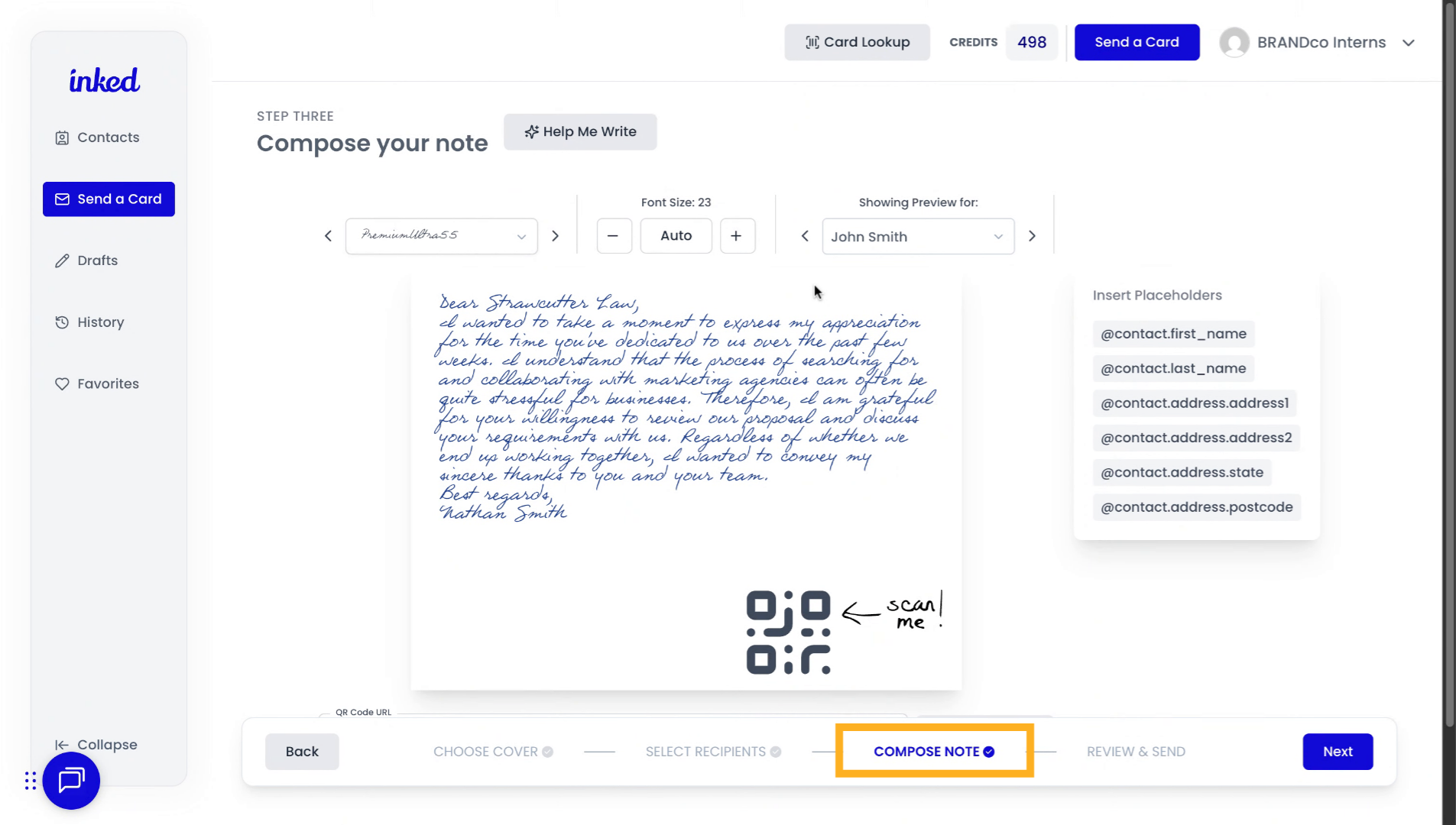
Start in the Compose Note section of the card-writing process. Review your card to ensure it's accurate and ready to send.
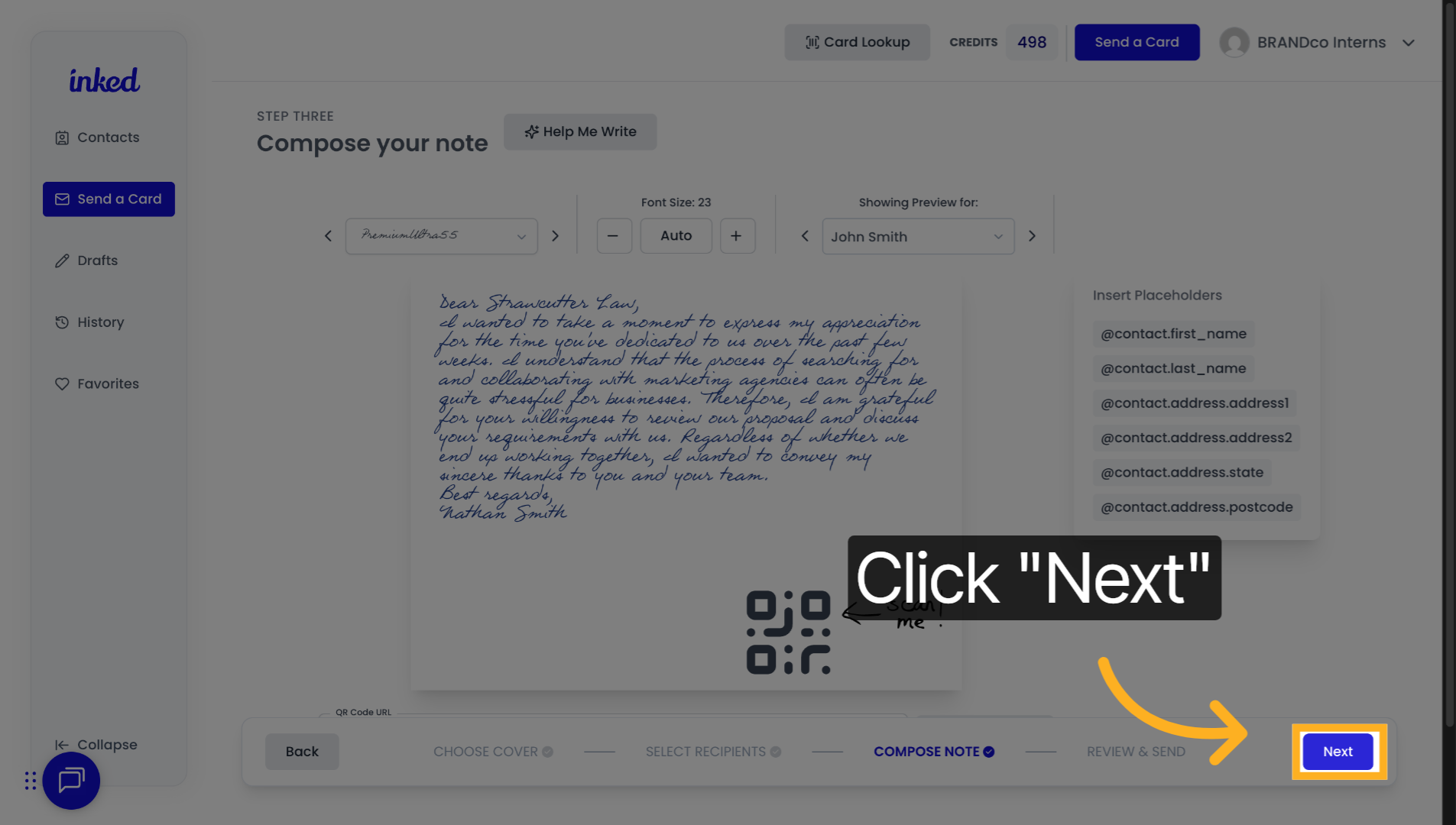
2. Click "Next"
If everything looks good, click Next (bottom right).
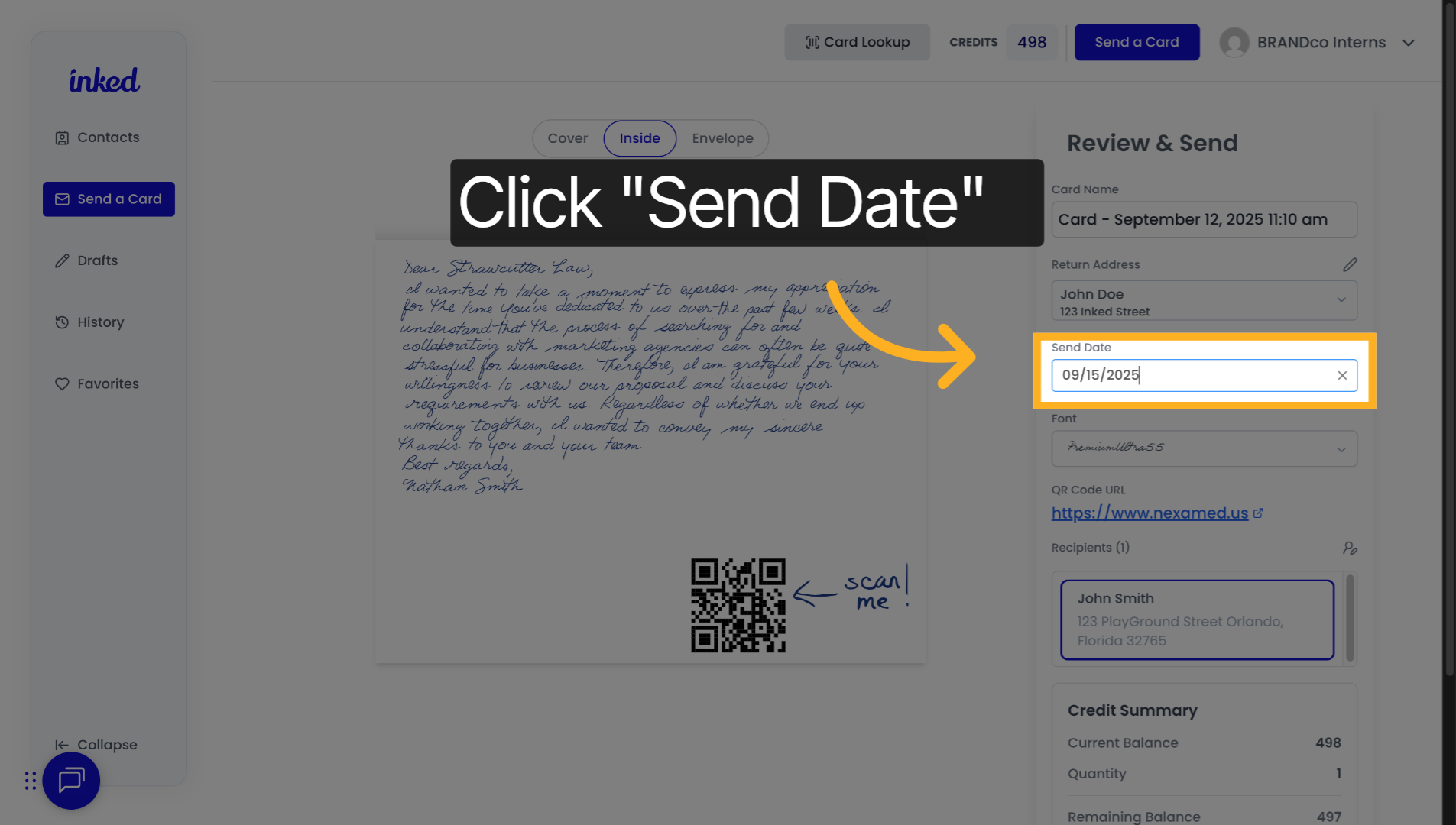
3. Click "Send Date"
In the Review & Send step (right side), click the Send Date tab.
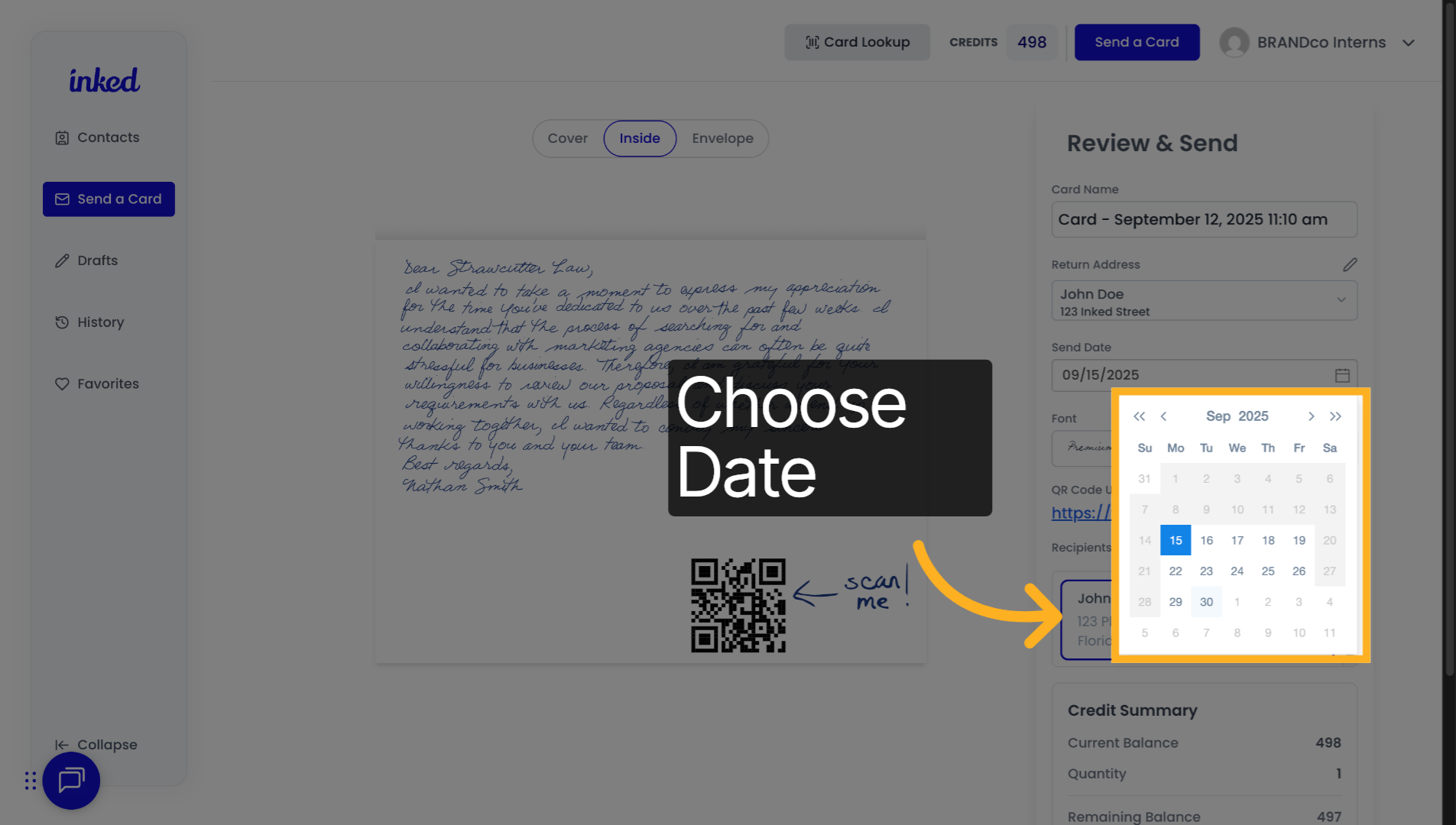
4. Click Your Specific Date
Use the picker to change the year (double arrows), month (single arrows), and day on the calendar.
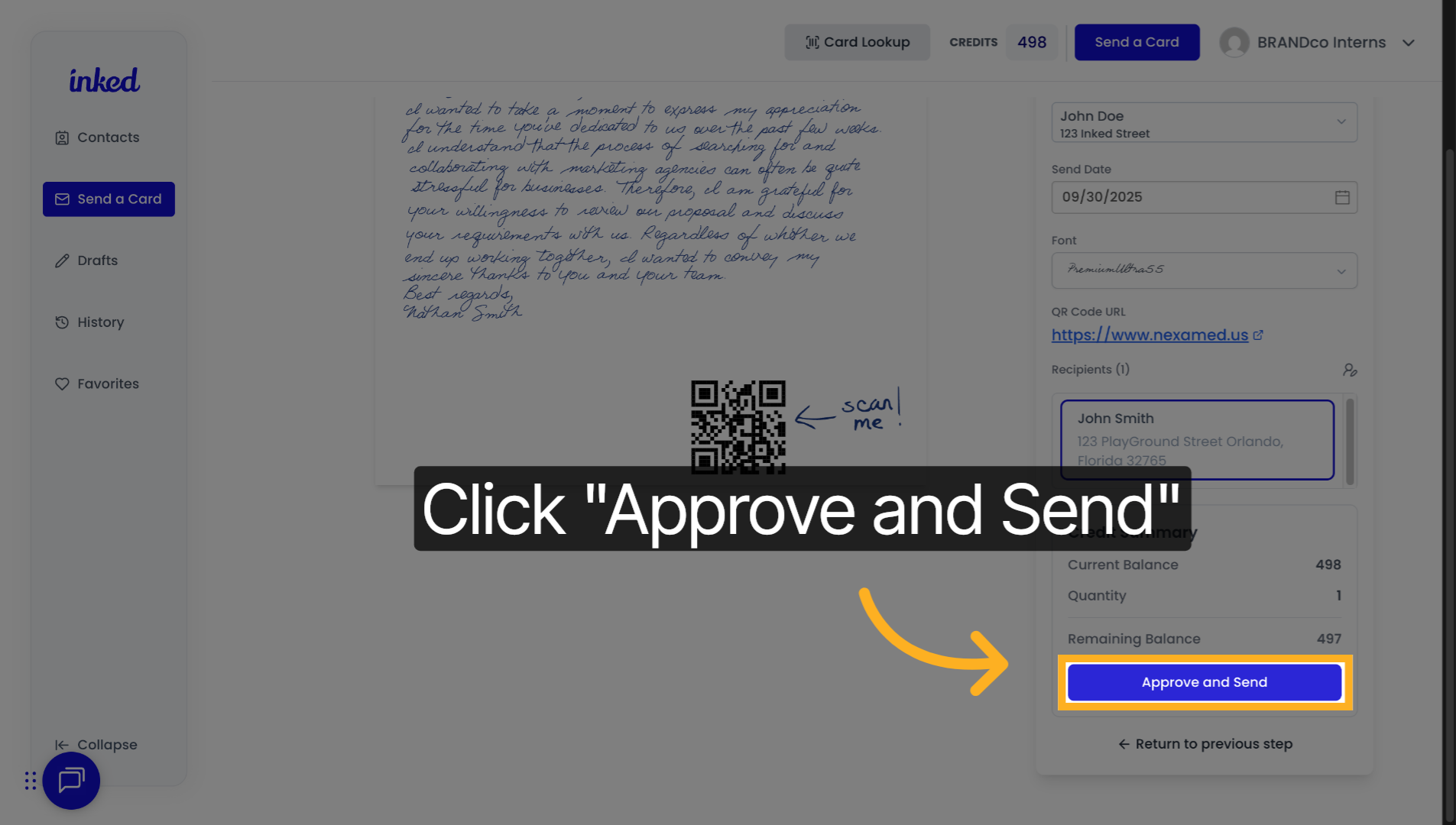
5. Click "Approve and Send"
Review your envelope, message, and send date. If everything looks good, click Approve and Send. Note: sending finalizes your card—no further edits can be made.
That's it—you've scheduled your card for a later date in Inked.