Skip to content
  • There are no suggestions because the search field is empty.

How do I schedule cards to be sent on future dates?

Step 1: Click “Send a Card”

Begin by selecting “Send a Card” from your Inked dashboard. There are two locations from which to do this. One is on the top right of your screen, next to your total credits. The second location is on the left-hand navigation bar, in between the "Contacts" button and the "Drafts" button.
How to Schedule a Card for a Later Date

Scheduling a card in Inked is easy. Here's how to do it in five quick steps.

Go to app.inked.com

1. Introduction

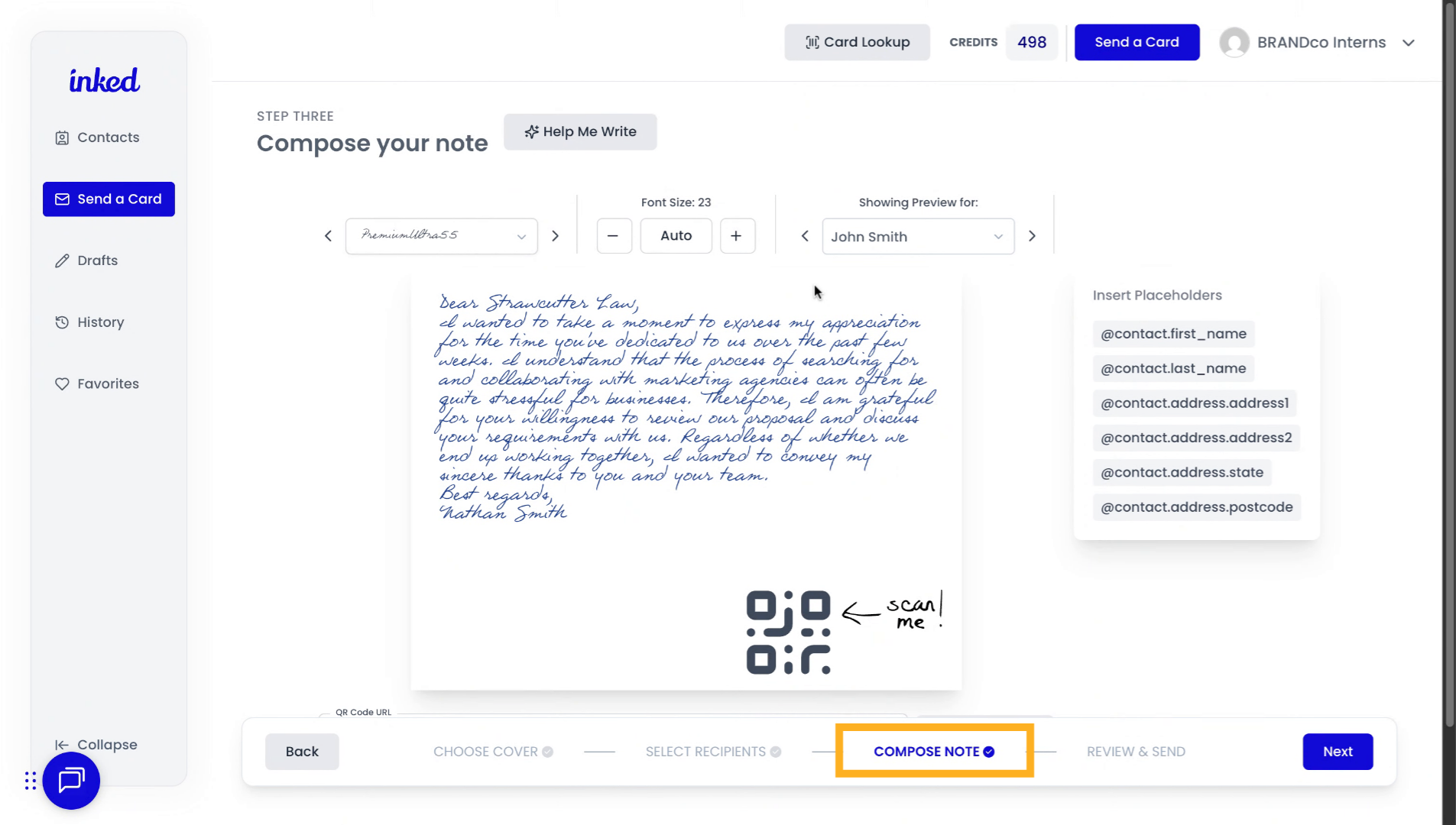
Start in the Compose Note section. Review your card to make sure everything is accurate.
Compose note section

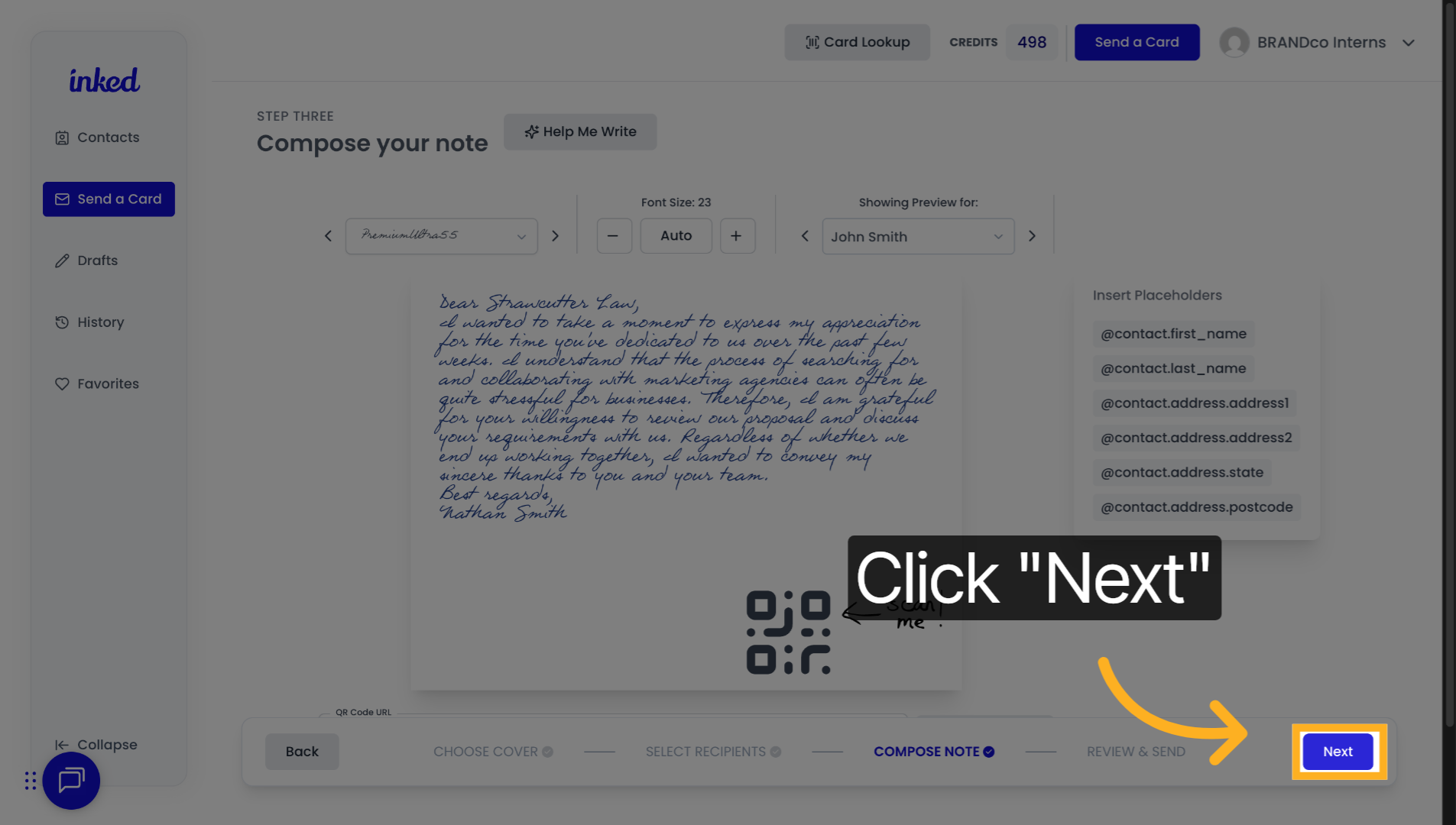
2. Click "Next"

If everything looks good, click Next (bottom right).
Click Next

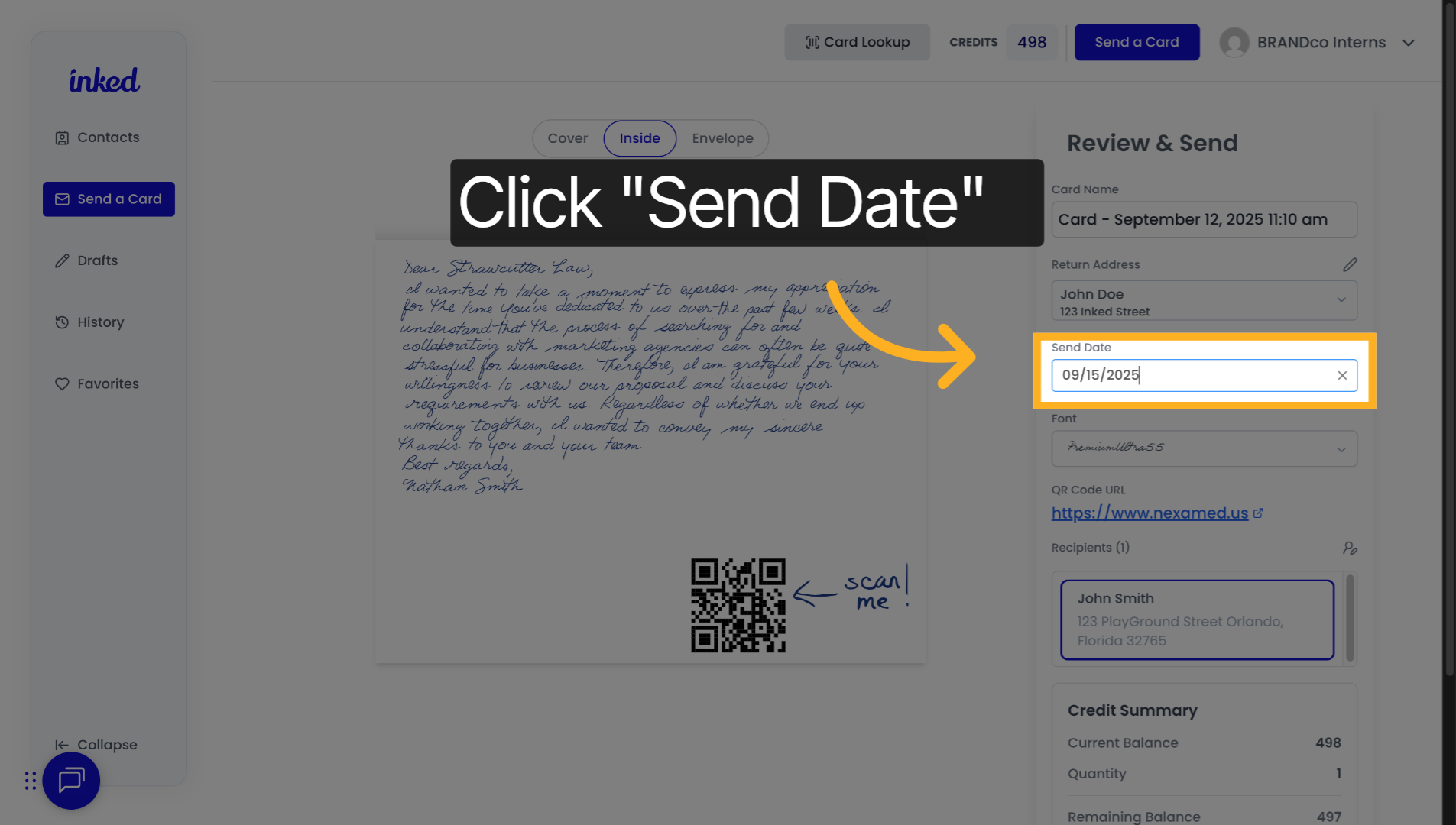
3. Click "Send Date"

In the Review & Send step (right side), click the Send Date tab.
Open Send Date tab

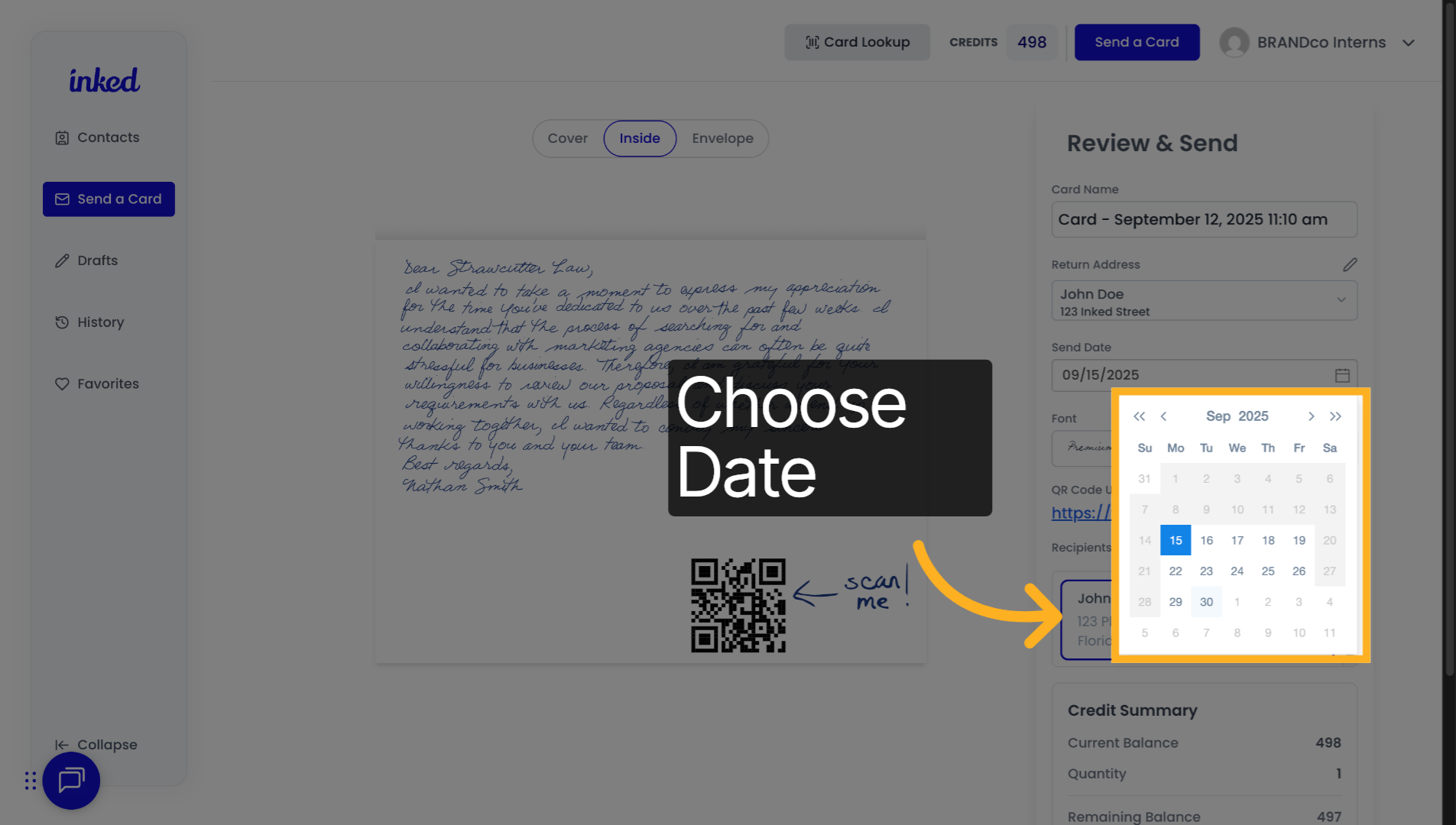
4. Click Your Specific Date

Use the dropdown to choose the year (double arrows), month (single arrows), and day on the calendar.
Pick send date

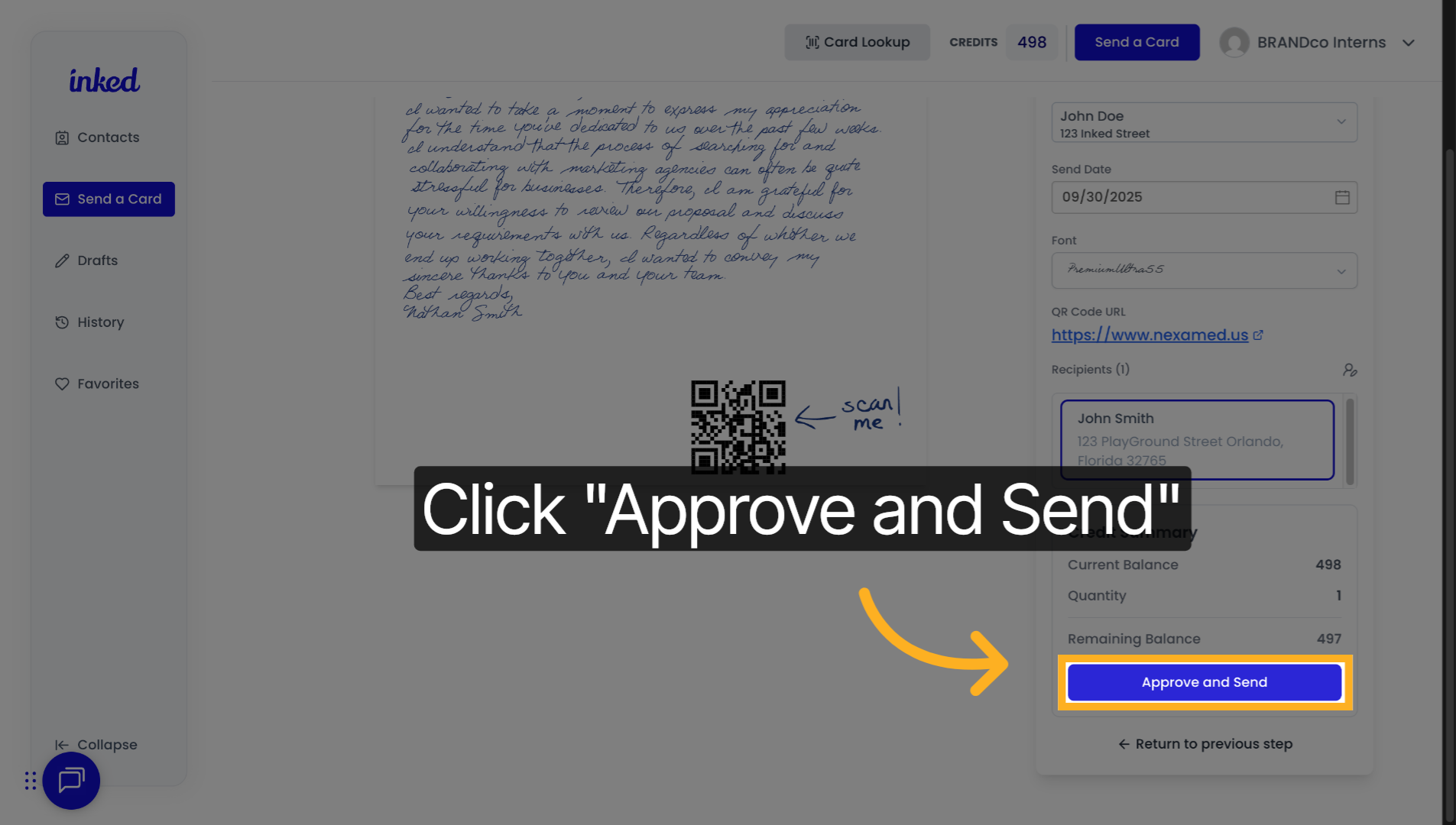
5. Click "Approve and Send"

Review your envelope, message, and send date. Click Approve and Send to finalize. Note: sending finalizes the card—no further edits can be made.
Approve and send
That's it—you've scheduled your card for a future date in Inked.


Inked Logo

Address

7100 TPC DR STE 700
ORLANDO, FL 32822

Contact

407-499-3000

hello@inked.com

More Info

Privacy Policy

Terms of Service

© BRANDco., LLC 2025. All Rights Reserved Worldwide