How to Add or Change Your Return Address
There are two ways to add or update a return address within your Inked account. Both methods are quick, but depending on where you are in the platform, one might be more convenient than the other.
How to change your return address
Adding a return address in ink takes less than a minute. Let me show you how
Go to app.inked.com
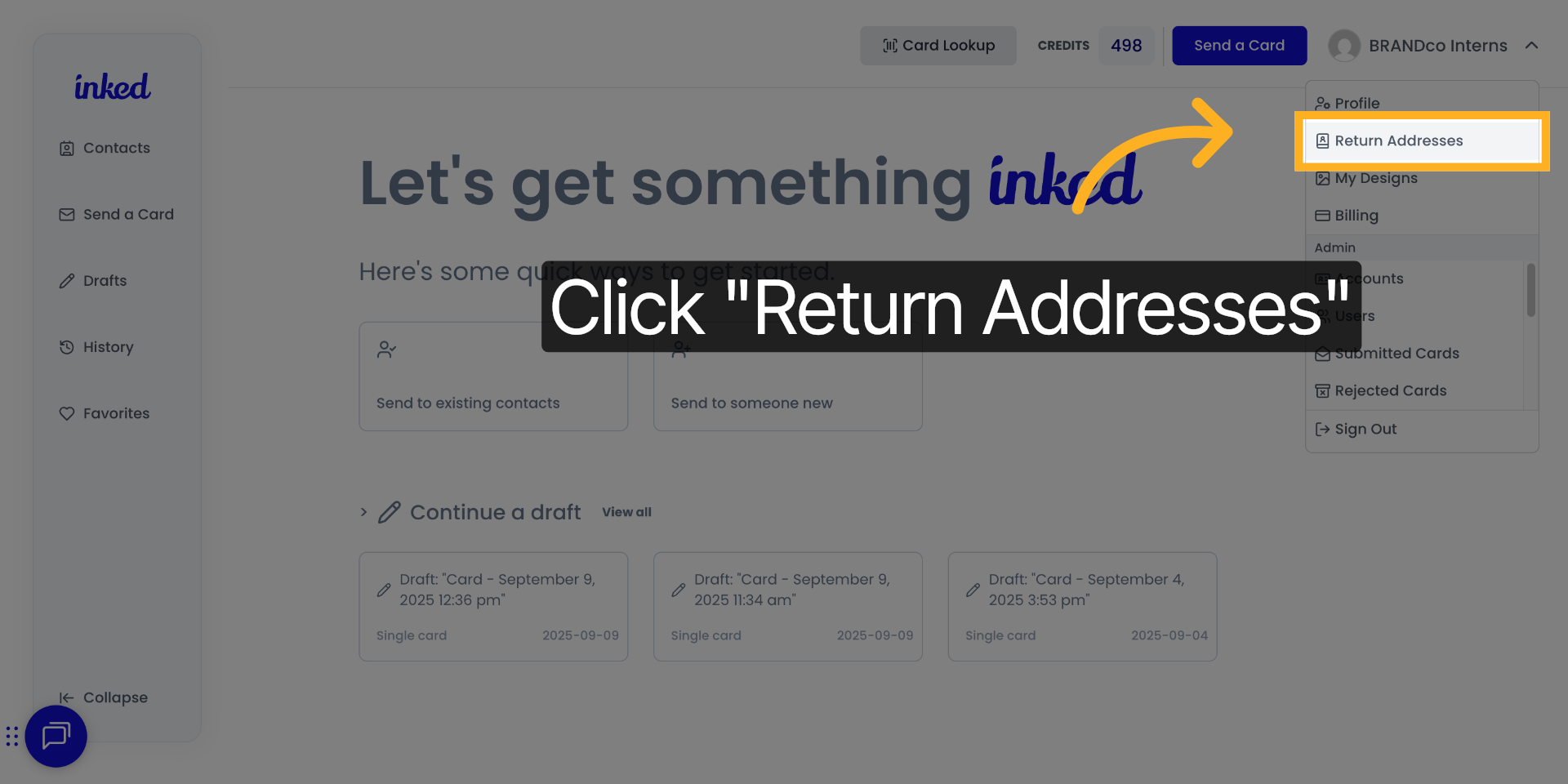
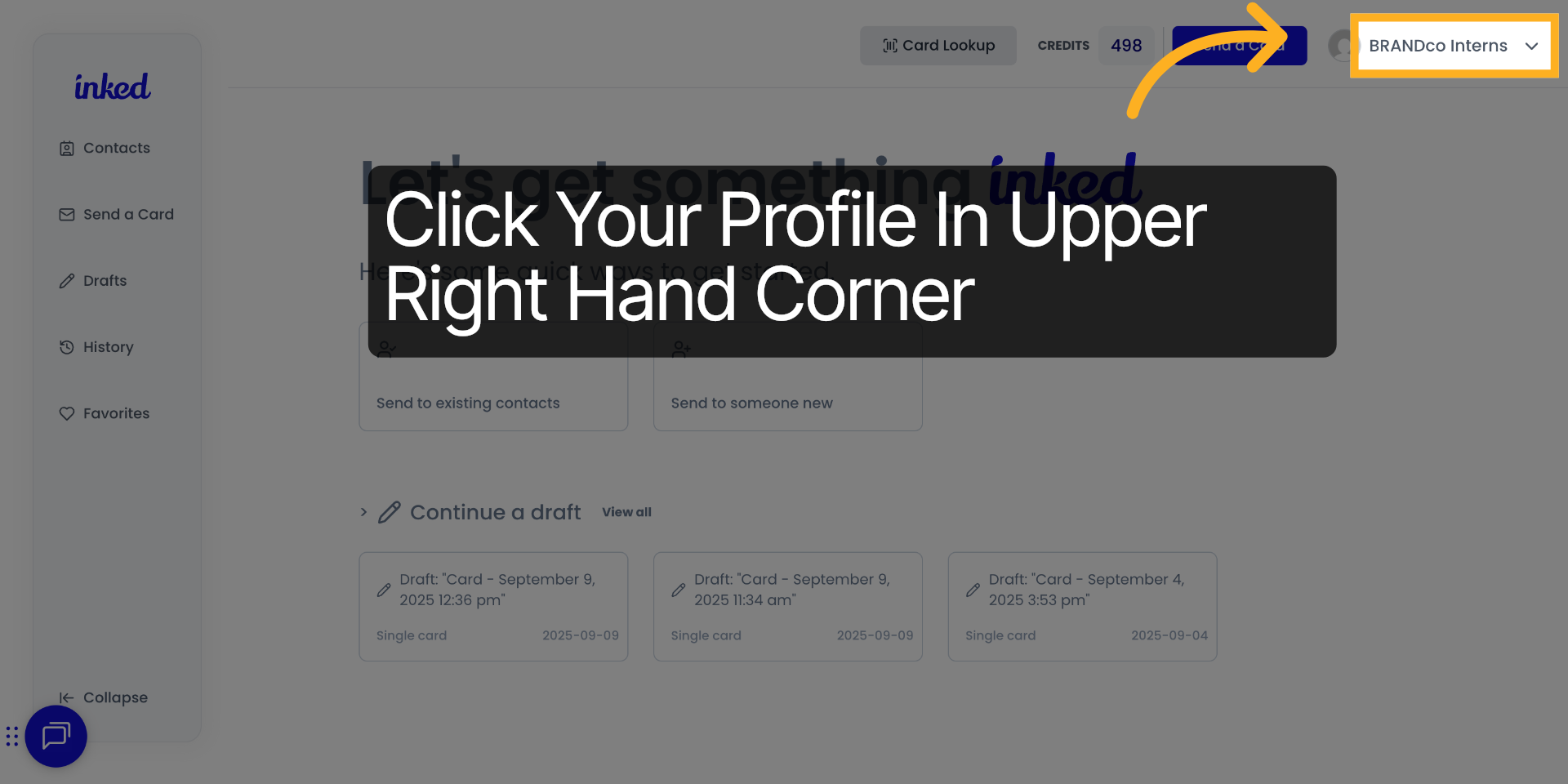
1. Click Your Profile
To begin, click your profile in the upper right hand corner. You should see a drop-down menu.
2. Click "Return Addresses"
From the drop-down menu. Choose return addresses.
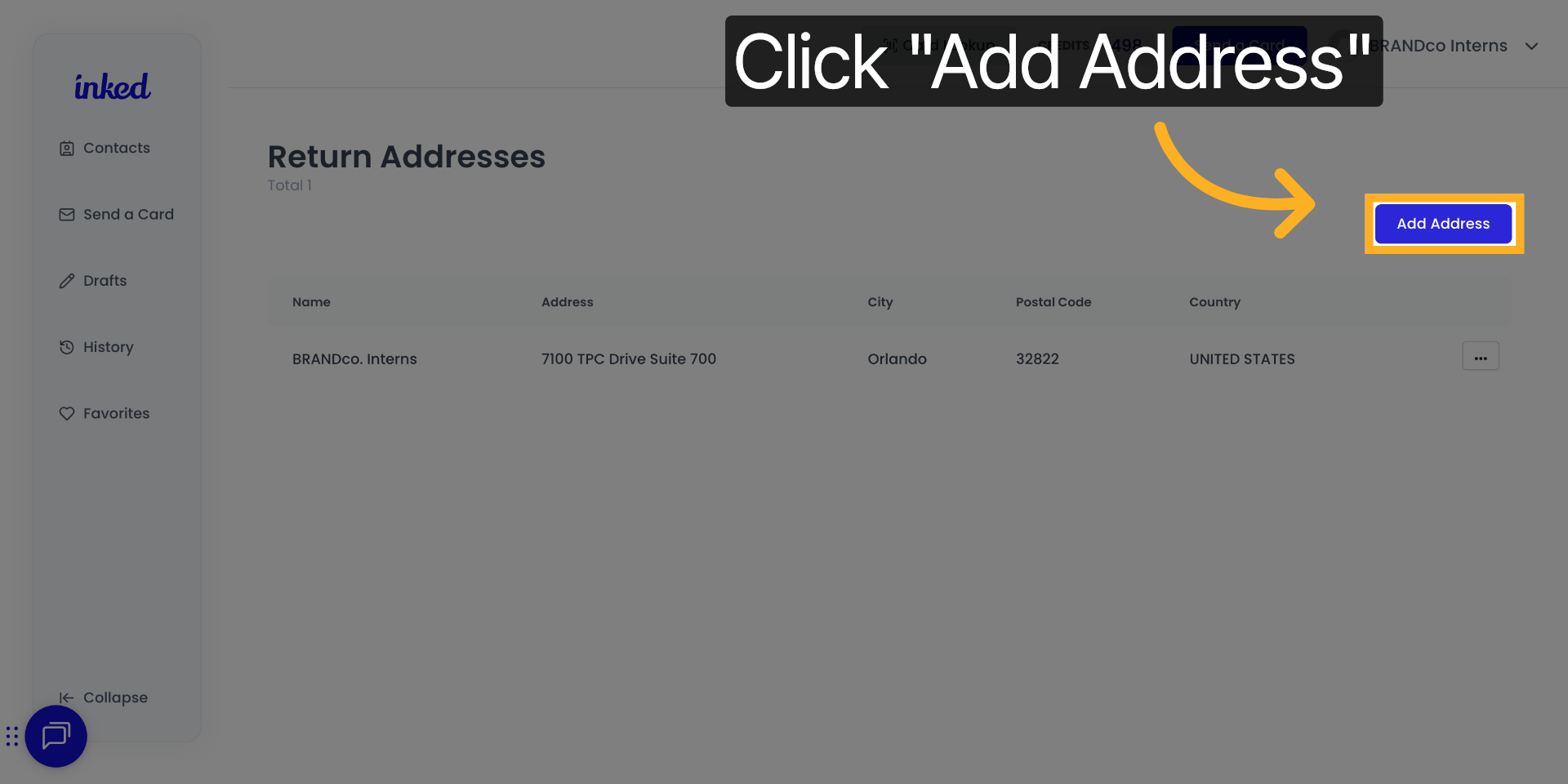
3. Click "Add Address"
Once inside the return addresses window, make sure to click add addresses in the upper right hand corner.
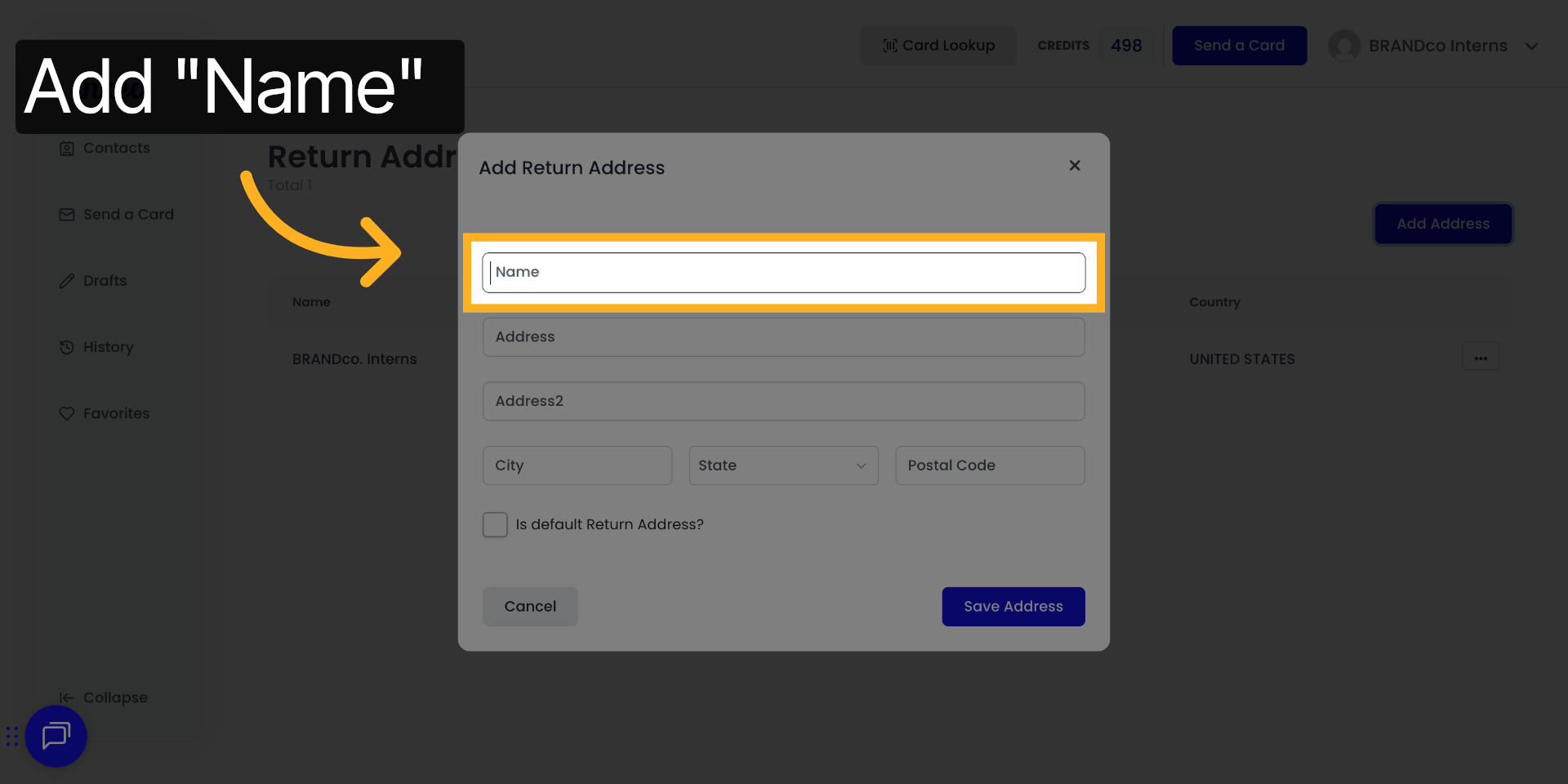
4. Click "Name"
You will need to go through the steps of adding their name.
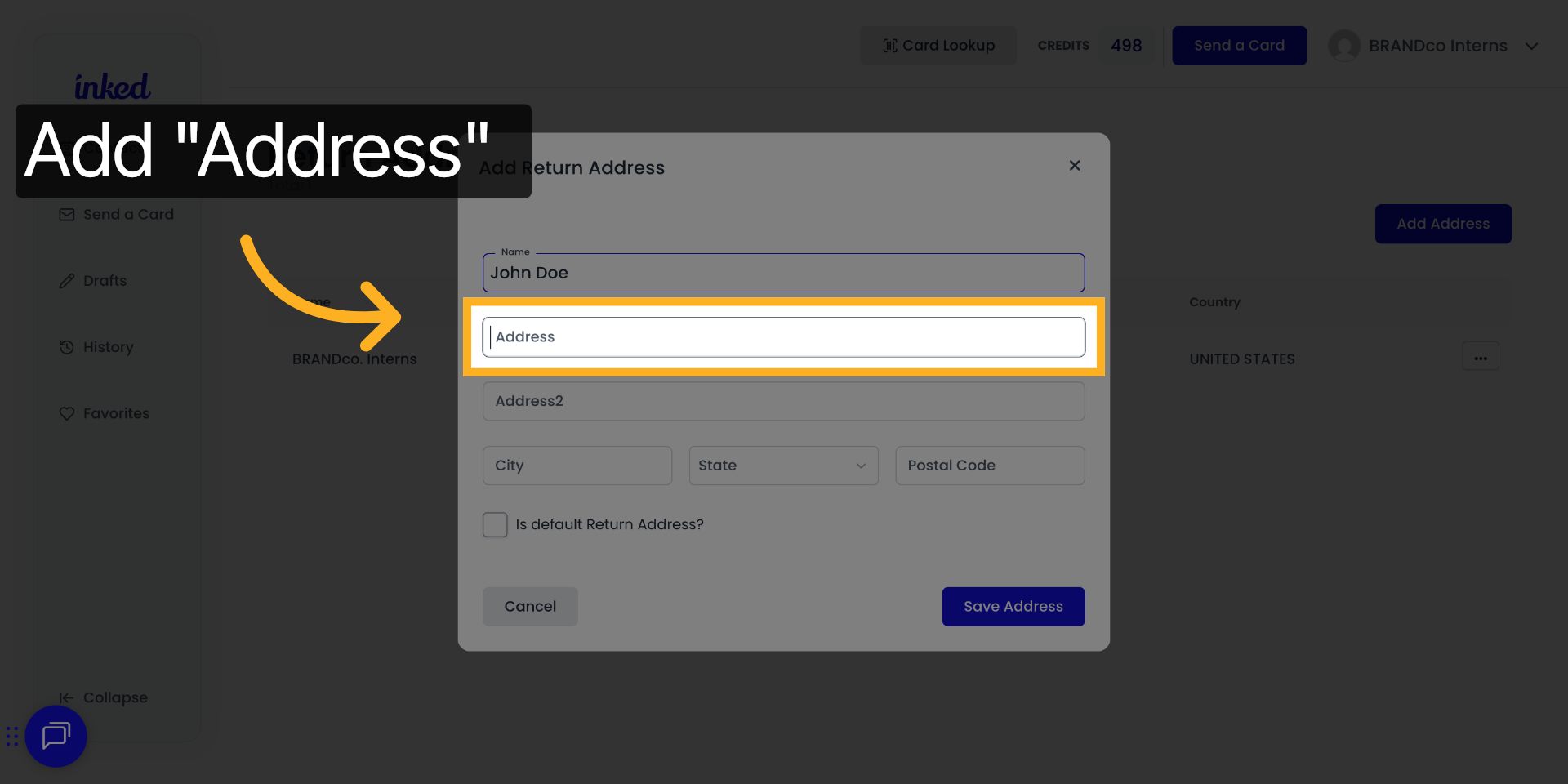
5. Click "Address"
Adding the return address.
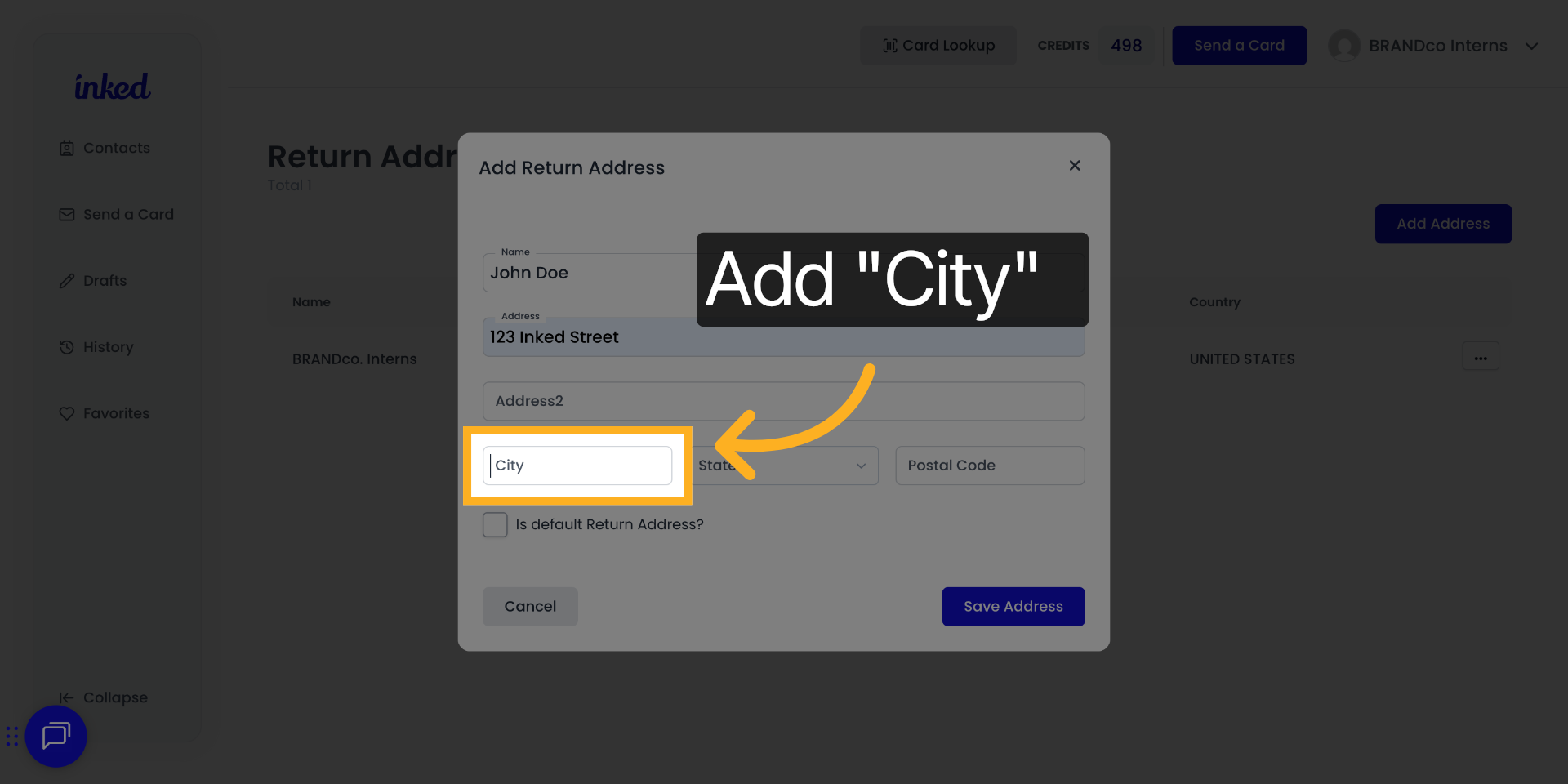
6. Click "City"
Adding the city.
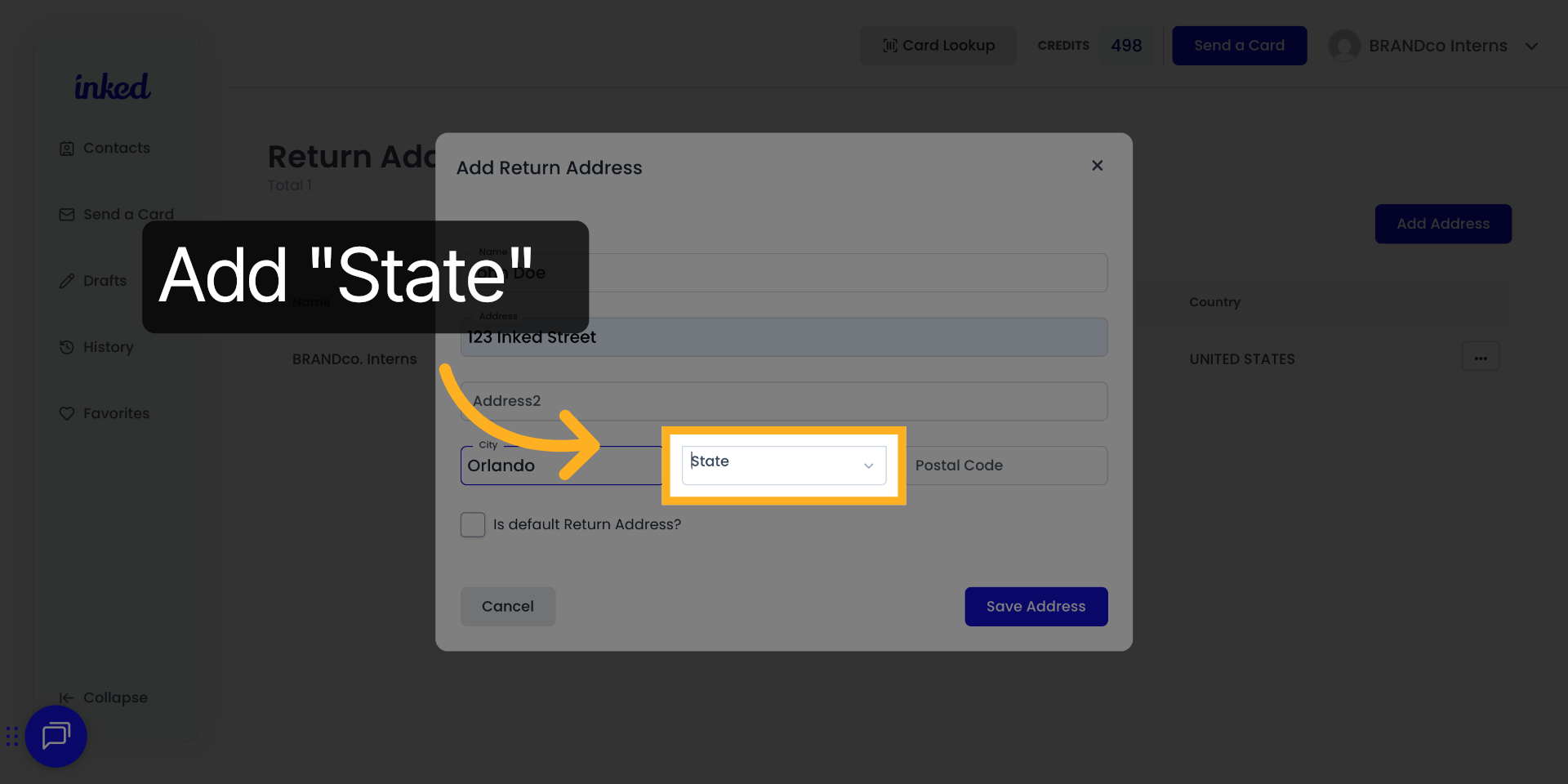
7. Add State
We're going to adding the state.
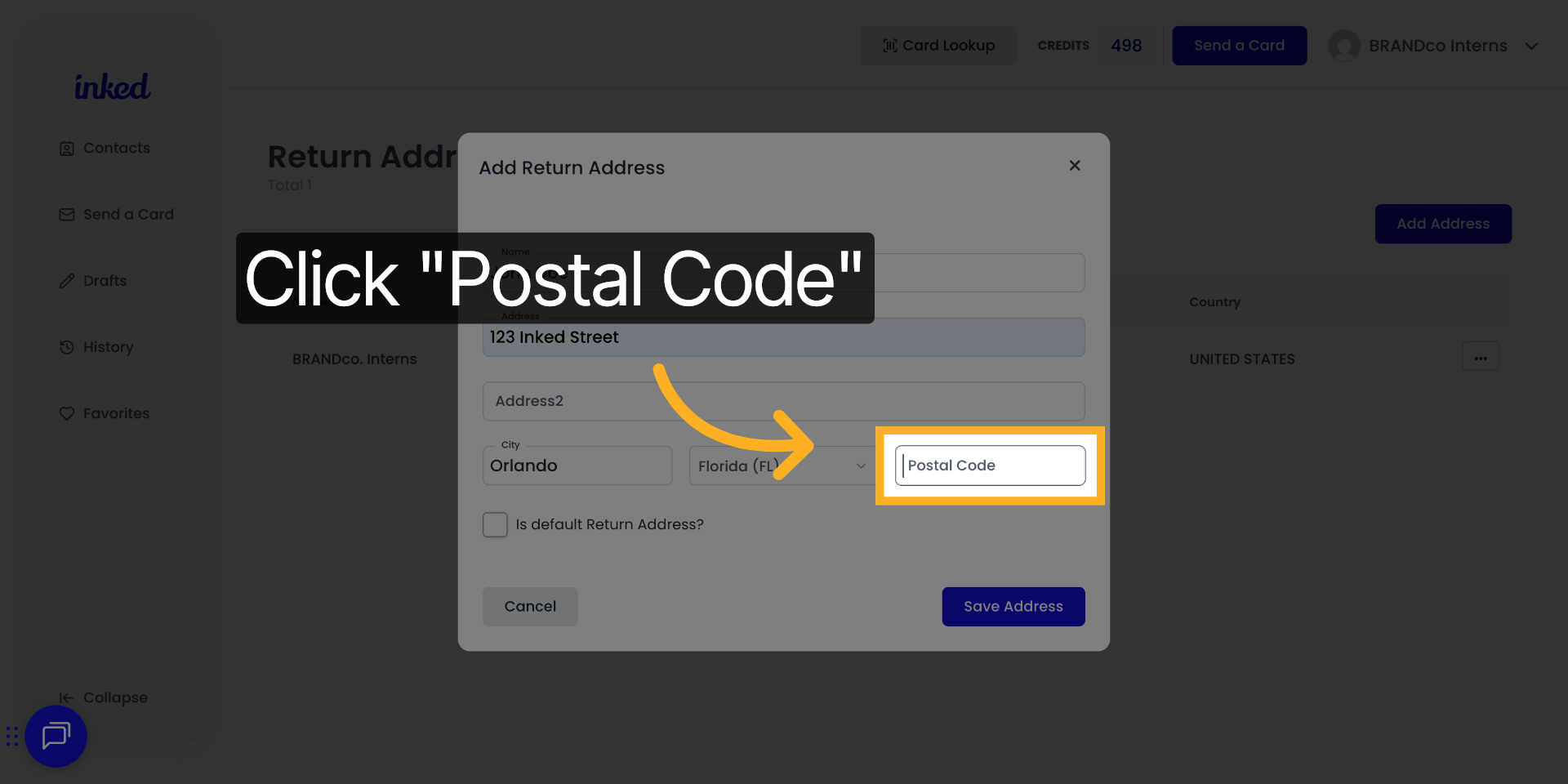
8. Click "Postal Code"
And finally adding their zip code.
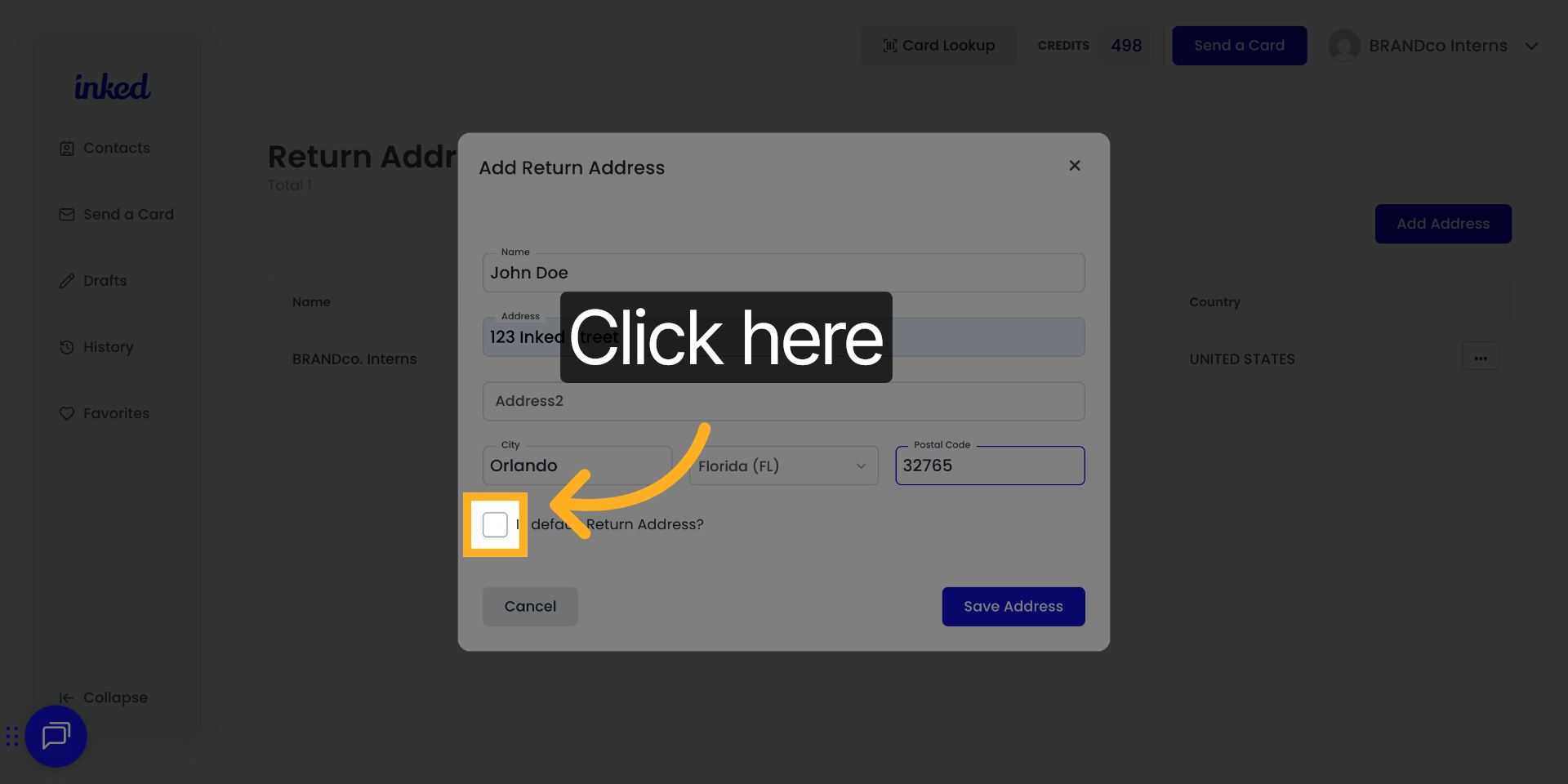
9. Click here
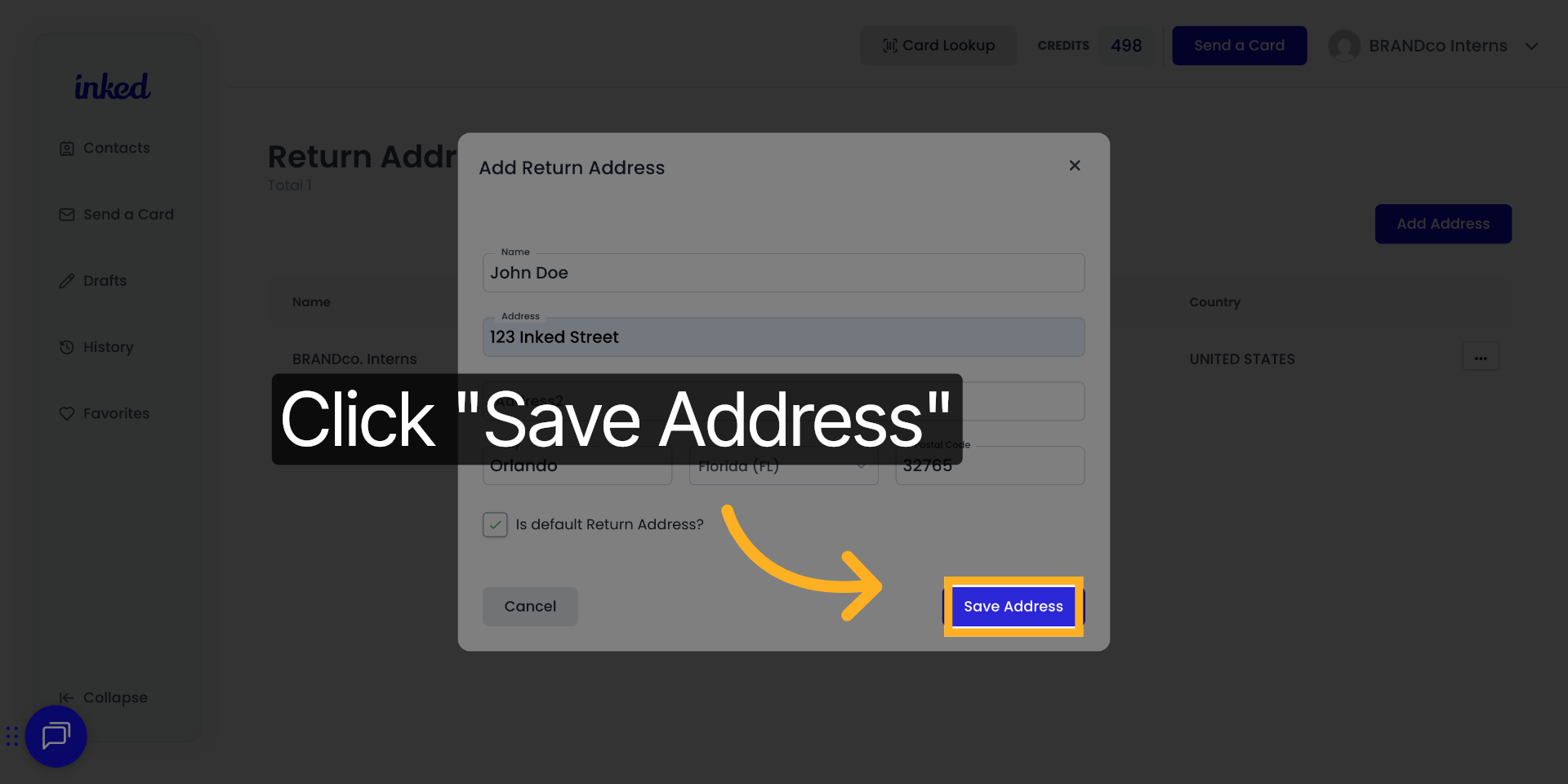
If you would like this return address to be your default return address, click that little box at the bottom left hand side of the panel. Please note that clicking this will override your current return address.
10. Click "Save Address"
Once you have confirmed that all of the information is correct, you can click save address.
Congratulations. You have successfully updated your return address in Inked.